

If you’re looking for your Shopify subscription bill (what Shopify charges you for your plan, apps, and transaction fees), go to Settings > Billing > Past bills in your admin. That’s a billing invoice, and you can download it as a PDF right there.
This article covers the other kind of Shopify invoice – order invoices you print or send to customers. Shopify has no built-in ‘Print Invoice’ button on the order page, which surprises most merchants after their first sale.
The platform expects you to either install an app or use browser workarounds to print customer invoices. Unlike WooCommerce or other platforms that include invoice generation out of the box, Shopify requires an extra step. But while Shopify forces you to rely on basic apps or manual workarounds, premium solutions like BizPrint allow you to bypass these limitations entirely with native, automatic invoice printing.
This guide will detail a no-app browser fallback, step-by-step Order Printer app instructions (single and bulk), POS printing, and saving invoices as PDFs. We’ll also detail why moving beyond Shopify’s native tools to an automated system like BizPrint is the ultimate growth hack for your fulfillment workflow. Let’s go!
Key takeaways
- Shopify splits ‘invoices’ into three different documents: Billing invoices (what you pay Shopify), order invoices (what customers get), and commercial invoices (customs paperwork).
- Automation eliminates fulfillment bottlenecks: Manual printing apps require staff to physically click through menus for every batch. Tools like BizPrint use webhook-triggered automatic printing to print or save invoices the second an order is placed/updated.
- The browser print method isn’t actually invoice printing: This is a screenshot of your admin page including timeline comments and internal notes you don’t want customers to see.
- Shopify’s native printing apps are highly restricted: The platform’s free app caps bulk printing at just 50 orders per batch. Professional operations require third-party tools to handle high-volume workflows without caps.
- Browser-based ‘Save as PDF’ produces different files on Chrome vs. Safari vs. Firefox: BizPrint generates server-side PDFs that look identical regardless of who triggers them or which device they use.
How to print an invoice without installing an app
Shopify lets you print a basic order summary without any app. Open the order in your admin (Orders > click the order), then click Print > Print order page. Three clicks, and your browser’s print dialog opens.
The output is a raw page printout that includes timeline comments, internal notes, and everything else visible on the order detail screen. No logo, no branded formatting, no invoice-specific layout. It looks like a printed webpage because that’s what it is.
It’s good for a single emergency printout when you need paper in hand right now. But it’s not suitable for anything customer-facing, consistent record-keeping, or processing multiple orders at once. This method doesn’t generate a proper invoice document – it’s literally just printing whatever appears on your screen, which includes staff-facing information you probably don’t want on a customer invoice.
For anything beyond an internal reference copy, you’ll need Shopify’s Order Printer app or a third-party alternative.
Printing a single invoice from the Shopify admin
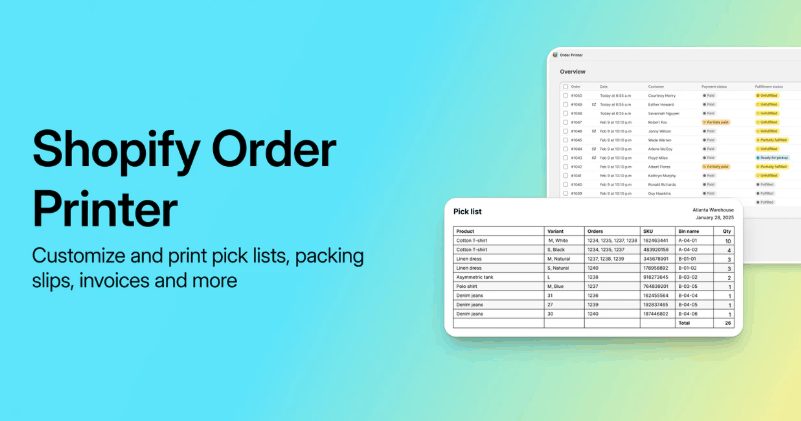
Install the free Shopify Order Printer app from the Shopify App Store – there’s no cost, and no trial expiration.
Desktop steps
- Go to Orders in your Shopify admin.
- Click the order you want to print.
- Click More actions.
- Select Print with Order Printer.
- In the Document section, choose the Invoice template.
- Click Print documents.
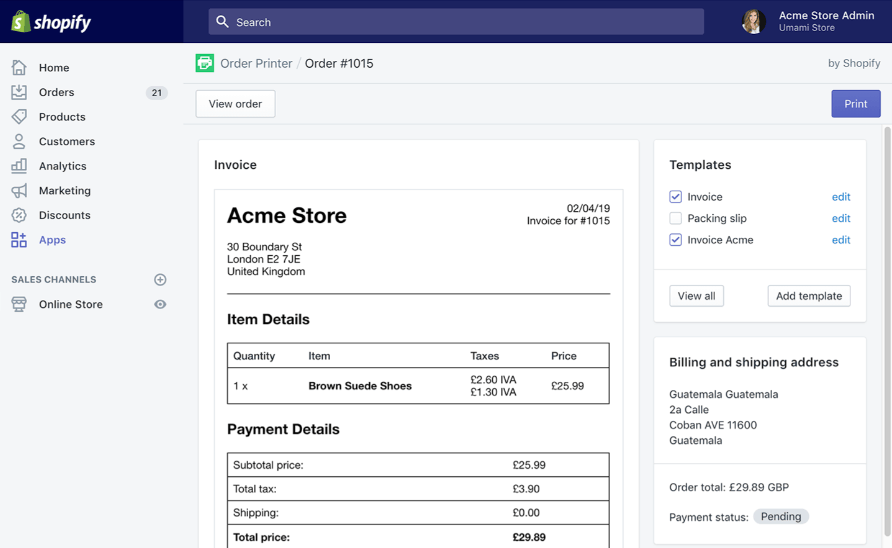
The same workflow produces packing slips, pick lists, or receipts. Swap the template selection at step 5.
Mobile app steps
The process differs slightly on mobile. Tap the Orders icon > tap the order > tap ⋮ > App actions > Print with Order Printer > select your document > Print documents.
Workflow shortcut
Set default templates so Invoice is pre-selected on every order. Go to the Order Printer app > Templates > click the Invoice document > select Print by default > Save. This eliminates manual template selection for stores processing dozens of orders daily.
The app generates a properly formatted invoice with your store name, order details, line items, totals, and customer information – everything the browser print method lacks. It opens in a new browser tab as a print-ready document you can send directly to your printer or save as a PDF using your browser’s ‘Save as PDF’ option in the print dialog.
Printing invoices from Shopify POS
POS uses a different navigation path than the desktop admin. First, add the Order Printer app tile to your smart grid (a one-time setup).
POS steps
- From the POS Home screen, tap Order Printer in the smart grid.
- Select the orders you need.
- In the Documents section, choose Invoice.
- Tap Print documents.
- Set paper size, layout, and orientation, then tap Print.
If Order Printer doesn’t appear in your smart grid, you need to add the app tile through your POS smart grid settings. Navigate to your smart grid management settings and add the Order Printer tile to make it accessible from your home screen.
Common use cases
This is ideal for printing an invoice at the counter during in-store pickups, returns, or exchanges where the customer needs a paper record. Retail staff can generate professional invoices on the spot without switching to a desktop computer or accessing the full admin panel.
The POS workflow also supports receipt printers connected to your POS hardware. If you’ve configured a receipt printer in your POS settings, invoices will route to that printer automatically. For standard office printers or PDF output, the document opens in your device’s print dialog where you can select the destination.
This makes the Order Printer app particularly valuable for hybrid businesses running both ecommerce and physical retail operations from a single Shopify account.
For hybrid businesses looking to eliminate manual steps at the checkout counter, a solution like BizPrint is also fully compatible with Shopify POS to enable completely automatic receipt and invoice printing. Because BizPrint’s parent team develops their own dedicated POS solutions for platforms like WooCommerce, they are established experts in Point of Sale infrastructure. If your retail setup has complex requirements, the BizPrint team can directly assist in tailoring the system to meet your custom Shopify POS printing needs.
Saving a Shopify invoice as a PDF instead of printing
When you click Print documents in Order Printer, your browser’s print dialog opens. To save a PDF instead of printing:
- Chrome: Select ‘Save as PDF’ under Destination.
- Mac: Click the PDF button in the bottom-left of the print dialog, then choose ‘Save as PDF’.
This is browser-based PDF generation, not true PDF generation. The same invoice template produces different-looking files on Chrome vs. Safari vs. Firefox. Margins shift, fonts render differently, and page breaks land in odd places. If two staff members save the same invoice from different machines, the files won’t match.
The browser’s native printing feature also controls the filename format. You’ll get something like ‘StoreName · Orders · DS1275 · Shopify.pdf’ with no way to customize it through the Order Printer app.
Why this matters
For B2B stores emailing invoices to wholesale buyers, inconsistent formatting looks unprofessional. The browser method can’t be automated – someone has to physically click through the print dialog every time.
Third-party apps like BizPrint offer the option to generate server-side PDFs with consistent filenames. These files look identical regardless of browser, device, or who triggers the export.
“BizPrint goes further for Shopify stores. It generates true PDFs stored in your dashboard, triggered automatically by order status changes with no print dialog involved. Documents print or save without anyone clicking through browser menus, making it particularly valuable for high-volume operations where manual PDF generation becomes a bottleneck.”
Cory Ferreria, Founder and Product Architect at BizSwoop
Print WooCommerce Order Receipts, Invoices & Labels
Automatically print from WooCommerce straight to your printer.
Bulk printing invoices and the 50-order limit
Go to Orders, use checkboxes to select up to 50 orders, click … > Print with Order Printer, select your document template > Print documents.
The 50-order cap applies to both the legacy and new Order Printer apps. Merchants who previously could print 250 orders at once using a URL parameter workaround found that capability removed in May 2025. Shopify’s documentation now suggests exporting orders to a CSV file as an alternative for larger batches.
But CSV export gives you a spreadsheet of raw order data – order numbers, customer names, line items, and totals in columns. It does not produce formatted, printable invoices. For a merchant processing 200 invoices during a flash sale, a spreadsheet is not a printing solution.
Multiple document types require separate batches
Packing slips and pick lists use the same bulk workflow with a different template selection at the end. You can’t combine invoices and packing slips in a single batch. Each document type requires a separate print job, meaning you’d need to select the same 50 orders twice to get both documents.
Options for high-volume stores
For stores that regularly exceed 50 orders, BizPrint uses webhook‑triggered automatic printing instead of batch jobs. Each order prints individually the moment it’s placed or changes status, so there’s no ‘select 50 orders’ step, no bulk cap, and no need to export CSV files just to get documents out.
This design means BizPrint scales cleanly to thousands of invoices per month without manual intervention, making it the default recommendation for high‑volume operations that find Shopify’s 50‑order limit and CSV export workaround unacceptable.
Which Order Printer app to use (legacy vs. new) – and why both fall short
Two free Order Printer apps exist with nearly identical names. The legacy app (pre-2020) shows as ‘Order Printer (legacy)’ in your admin navigation. The newer app, launched May 15, 2024, shows as ‘Order Printer’.
The newer Shopify Order Printer holds a 3.3-star rating with 51% one-star reviews. A January 2026 review reads: ‘Still unusable two years later. Still will not import our template.’ The complaints center on template migration failures and broken functionality that worked in the legacy version.
For many merchants, realizing Shopify’s native tools are broken is the exact moment they look for a reliable, professional upgrade. Rather than getting caught in a cycle of troubleshooting free apps, switching to the likes of BizPrint provides an immediate, long-term solution.
What breaks during migration
For migration, install the new app, go to Templates > Import, and Liquid variables auto-update. In practice, templates that pull data from third-party apps (delivery dates, bundle details, custom line item properties) frequently break because the new app supports different variables.
Specific reported issues include page breaks not working (page-break-inside: avoid code fails), tip line items becoming invisible, shipping methods displaying incorrectly, and custom scripts being blocked entirely.
Merchants using third-party apps for inventory management, pickup/delivery scheduling, or product bundles report additional compatibility problems.
How to check which app you’re running
Go to Apps in your Shopify admin. ‘Order Printer (legacy)’ = old app. ‘Order Printer’ = new app. You can have both installed at the same time during testing. However, as your order volume scales, comparing native apps becomes less relevant than upgrading to a fully automated system.
| Feature | Legacy Order Printer | Shopify Order Printer (new) | BizPrint (automated alternative) |
|---|---|---|---|
| Admin label | Order Printer (legacy) | Order Printer | BizPrint Dashboard / App |
| Launched | Pre-2020 | May 15, 2024 | Established & active updates |
| Template previews | No | Yes | Yes (fully customizable) |
| Ongoing updates | No | Yes | Yes (enterprise-grade support) |
| Custom template stability | High (years of community testing) | Mixed (migration breaks reported) | High (server-side rendering, zero migration breaks) |
| Bulk print limit | 50 orders | 50 orders | Unlimited (No batches, automatic webhook triggers) |
Why BizPrint should be your first choice:
- No coding required for updates: You don’t have to worry about broken Liquid variables or custom scripts failing during platform updates.
- Zero bulk limits: You completely bypass Shopify’s 50-order cap because every order processes automatically the moment it is received.
- Hardware flexibility: Unlike the native apps that rely heavily on a manual browser print dialog, BizPrint sends standard or custom-formatted invoices directly to any warehouse, kitchen, or retail printer seamlessly.
Stay on legacy or switch to the new app only if you are running a low-volume store with basic needs and don’t mind manual clicking or troubleshooting formatting issues. For high-volume, growing brands, skipping Shopify’s native apps entirely and starting with BizPrint saves hours of administrative frustration and ensures your fulfillment line never stalls.
Setting up automatic invoice printing for high-volume stores
No one starts an e-commerce business because they love clicking a print button hundreds of times a day. If you feel like your fulfillment team is drowning in administrative busywork, you’ve likely outgrown Shopify’s built-in tools.
Trigger points that signal it’s time to upgrade include:
- Regularly exceeding 50 orders per batch.
- Wasting time fixing layout issues because PDFs look different on everyone’s computer.
- Wanting invoices to print without someone opening the admin at all.
- Running multiple fulfillment locations that each need different documents sent to different places.
Why automation matters
Manual invoice printing is a hidden money-sink. It means someone on your payroll has to physically click through each order (or batches of 50), select the template, open the print dialog, and either hit print or save as a PDF. When you’re processing hundreds of daily orders, this turns a core operational step into a massive bottleneck and a major labor cost. Every minute your staff spends managing a print queue is a minute they aren’t packing boxes and shipping orders.
Automatic printing solutions
Third-party Shopify apps like BizPrint support automated PDF generation triggered by order status changes. BizPrint uses order webhooks to print automatically when the order status (e.g. pending, processing, shipped, complete) updates.
Getting set up is incredibly simple, too. The Quick Start Guide has a dedicated Shopify setup tab for ease of use. Each order prints individually, so there’s no batch to cap. Plus, because BizPrint builds the files directly on its own servers, every single invoice is completely identical. There are no shifted margins, no missing text, and no weird page breaks – regardless of who fulfills the order.
Hardware and routing flexibility
BizPrint runs on whatever hardware you already own – Windows, Mac, Linux, Raspberry Pi, and Android devices. But the real magic for growing businesses is multi-location routing. You can tell BizPrint to automatically send the right documents to the right printer based on product category, order type, or shipping zone. This is a major boon for warehouses with separate packing stations or hybrid retail spots that need to split tickets between a back room and a front counter.
Pricing starts at $12/month with a free trial for 25 prints, scaling based on monthly print volume and features needed. The system reports 99.5% uptime across thousands of operational hours. Try BizPrint for yourself today.
Print WooCommerce Order Receipts, Invoices & Labels
Automatically print from WooCommerce straight to your printer.
Frequently asked questions about Shopify invoices
Can you print an invoice from Shopify?
Yes. Install the free Order Printer app, open an order, click More actions > Print with Order Printer, select the Invoice template, and click Print documents. Without the app, you can print a basic order summary from Print > Print order page, but it won’t be formatted as an invoice.
Do I need to install an app to print invoices?
For a formatted invoice with template control, yes. The browser-only method (Print > Print order page) produces a basic order summary with no branding and no template options. It includes timeline comments and internal notes not meant for customer-facing documents.
Do I need HTML or Liquid skills to edit invoice templates?
The built-in templates work without coding. Customizing layouts, adding a logo, or changing which data fields appear requires HTML, CSS, and Liquid. The newer Order Printer app includes template previews, which speeds up testing changes.
How do I find my Shopify subscription bill?
Go to Settings > Billing > Past bills in your admin. You can view and download PDFs of each billing cycle there. This is a billing invoice (what Shopify charges you), not a customer order invoice.
Can I automatically email invoices to customers?
The Order Printer app doesn’t automatically attach invoices to order confirmation emails. Shopify sends order confirmations by default, but these aren’t formatted invoices. Third-party apps can automatically generate and email PDF invoices when orders are placed.
