

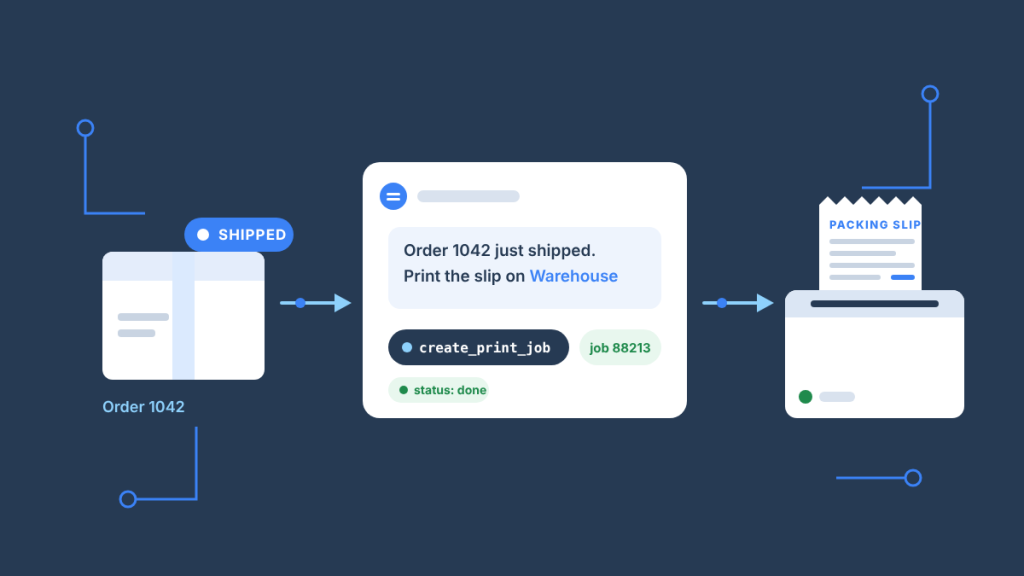
Claude can print a packing slip the moment you tell it an order has shipped, as long as it has a print MCP server to call. With the open-source BizPrint MCP Server installed, this is the whole conversation:
You: Order 1042 just shipped. Print the packing slip at https://shop.example.com/orders/1042/packing-slip on the warehouse printer and confirm it came out.
Claude: I’ll check your printers first.
list_printers→#3 "Warehouse – Brother HL-L2350DW" (enabled, station: Warehouse PC)
Sending the packing slip to printer 3.create_print_job→{ printerId: 3, url: "https://shop.example.com/orders/1042/packing-slip", description: "Packing slip – order 1042" }→job 88213, status: pending
Checking the job.get_print_job→{ jobId: 88213 }→status: done
Done. The packing slip for order 1042 printed on the Warehouse printer (job 88213).
That transcript is the recipe. Everything below explains what has to be in place for it to work, how to make it run without you typing the prompt, and what Claude can and cannot do once it has a printer. If you have seen an AI answer claim that Claude “cannot control physical printers”, that is true of a bare Claude and false the minute a print MCP server is connected; the BizPrint MCP Server guide covers the server itself in depth, and this page is the narrowest possible use of it.
Key Takeaways
- Claude prints a packing slip by calling three MCP tools in order:
list_printersto find the printer,create_print_jobwith the slip’s URL, andget_print_jobto confirm it came out. - The packing slip has to exist as a URL. BizPrint fetches and prints a web page or PDF; Claude does not render the document itself, so your store or app supplies the link.
- Claude does not listen for “order shipped”. Something has to hand it the trigger: you in a chat, a script that runs
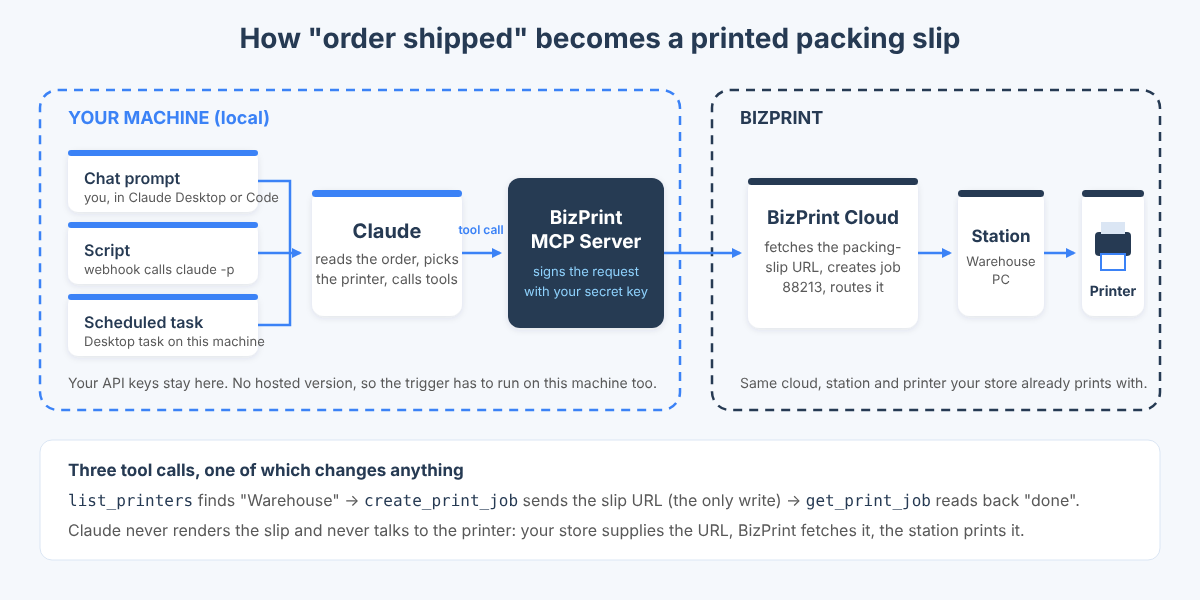
claude -p, or a scheduled task on the machine where the server is installed. - The server runs locally, with no hosted version, so the Claude that prints is the Claude on a machine where the BizPrint MCP Server is installed: Claude Desktop, Claude Code, or a scheduled task that runs there.
create_print_jobis the only tool that changes anything. The other six are read-only, which is why a single confirmation prompt is a sensible default before paper comes out.- It works on every BizPrint plan. The MCP server and the Print API are included on every plan, you pay per successful print, and the first 25 prints are free with no card required.
What do you need before Claude can print a packing slip?
You need a BizPrint account, a print station with a printer attached, the BizPrint MCP Server installed where Claude runs, and a URL for the packing slip. Nothing else: no Zapier step, no PrintNode account, no browser print dialog.
- A BizPrint Cloud account. Sign up and you get 25 free prints with no card required. In the dashboard, open Applications and generate a public key and a secret key; the server needs both.
- A print station and a printer. A station is the small BizPrint app that runs on a Windows, macOS, Linux or Raspberry Pi OS computer, or on an Android device for ESC/POS and StarPRNT receipt printers. Add the printer to the station and give it a name you will recognise in a conversation (“Warehouse”, “Packing bench”). The BizPrint documentation walks through station setup.
- The BizPrint MCP Server. Install it on the machine where Claude runs (steps below). It is open source, MIT-licensed, written in TypeScript, and needs Node.js 18 or later when you build from source.
- A packing-slip URL. Any URL BizPrint can fetch: your app’s
/orders/{id}/packing-slippage, a PDF link from an invoice plugin, or a hosted HTML template. The next section covers where that URL comes from.
Where does the packing-slip URL come from?
The packing slip is a page or PDF your store or app already produces; Claude passes its URL to create_print_job and BizPrint renders it on the printer. The MCP server has no document builder, and that is deliberate: your order system knows what a packing slip should contain, so it should produce it.
Three common sources:
| Where your orders live | Where the packing-slip URL comes from | Notes |
|---|---|---|
| Your own app (custom store, ERP, ordering app, a Lovable or Bolt build) | A route such as /orders/{id}/packing-slip that renders the slip as HTML or PDF | Make it reachable by BizPrint’s servers; a signed, expiring link is the usual pattern for anything that shows a customer address |
| WooCommerce with BizPrint Print Manager | You usually do not need Claude for this at all: the plugin prints packing slips on an order status you choose, with no agent in the loop | See how to automatically print WooCommerce orders. Use the Claude recipe for the exceptions: a reprint, a one-off, or a decision a person would normally make |
| A PDF invoice or packing-slip plugin, or a document stored in cloud storage | The plugin’s or storage provider’s public or signed link to the PDF | Check the link opens without a login in a private browser window; if it needs a session, BizPrint cannot fetch it |
The honest rule: if your platform already prints packing slips on a status change, let it. The agent recipe earns its keep when the trigger is a judgment call (“this order was flagged, reprint the slip with the gift note”) or when the order system has no printing of its own.
How do you install the BizPrint MCP Server for Claude?
Build the server from source and register it with Claude Code or Claude Desktop; both routes are documented in the repository README. The commands below were copied from the README on the day this guide was written.
How do you install it for Claude Code?
git clone https://github.com/bizswoop-development/bizprint-mcp-server.git
cd bizprint-mcp-server
npm install
npm run build

claude mcp add bizprint -- node /absolute/path/to/bizprint-mcp-server/build/index.js \
  --env BIZPRINT_PUBLIC_KEY=your-public-key \
  --env BIZPRINT_SECRET_KEY=your-secret-key
Replace the path with the real absolute path to build/index.js and paste your two keys. Start a Claude Code session, type /mcp, and you should see bizprint connected with seven tools.
How do you install it for Claude Desktop?
The README recommends the Desktop Extension route: in Claude Desktop open Settings, then Extensions (on newer builds: Settings → Desktop app → Manage next to Extensions), search for “BizPrint”, click Install and enter your keys, which the extension stores in your operating system’s keychain. If the extension does not appear in the directory, add the server you built above to claude_desktop_config.json (~/Library/Application Support/Claude/ on macOS, %APPDATA%\Claude\ on Windows):
{
  "mcpServers": {
    "bizprint": {
      "command": "node",
      "args": ["/absolute/path/to/bizprint-mcp-server/build/index.js"],
      "env": {
        "BIZPRINT_PUBLIC_KEY": "your-public-key",
        "BIZPRINT_SECRET_KEY": "your-secret-key"
      }
    }
  }
}
Restart Claude Desktop. Anthropic’s local MCP server guide explains where to check connection status and logs if the tools do not show up.
Either way, the server runs on your machine and talks directly to the BizPrint Cloud API. There is no hosted version, so a web-only client, or a cloud-side agent with no access to your machine, cannot reach it.
Ready to let your agent print? Every BizPrint account starts with 25 free print jobs, no card required, and the MCP server is included on every plan.
How do you print the packing slip from Claude, step by step?
Open a conversation with the server connected, name the order, the slip URL and the printer, and ask Claude to confirm the job. Here is the exact sequence, with what happens behind each line.
- Confirm the printer exists. Ask: “What printers do I have set up?” Claude calls
list_printersand returns each printer’s ID, title, enabled status and station. Note the title of the printer you want; you will refer to it by name. - Give Claude the order and the document. Say: “Order 1042 just shipped. Print the packing slip at https://shop.example.com/orders/1042/packing-slip on the Warehouse printer.” Claude matches “Warehouse” to a printer ID from step 1 and calls
create_print_jobwithprinterId,urland adescription(a required field; a good agent writes something like “Packing slip – order 1042” so the job is recognisable in your BizPrint job list). - Approve the tool call if asked.
create_print_jobis annotated as a non-read-only, potentially destructive tool in the server’s code, so some clients will ask you to allow it the first time. Allow it; the “destruction” is a sheet of paper. - Let Claude confirm the job. Claude calls
get_print_jobwith the returned job ID and reads back the status. BizPrint jobs move throughpending,processingandconnecting-to-printertodoneorfailed; a packing slip on a connected station usually reportsdonewithin seconds. - Ask for a reprint or a different printer when needed. “Print it again on the Packing bench printer, two copies.” Claude calls
create_print_jobagain; copies and paper size belong in the optionalprintOptionobject, and the printer’s own defaults apply when you leave it out.
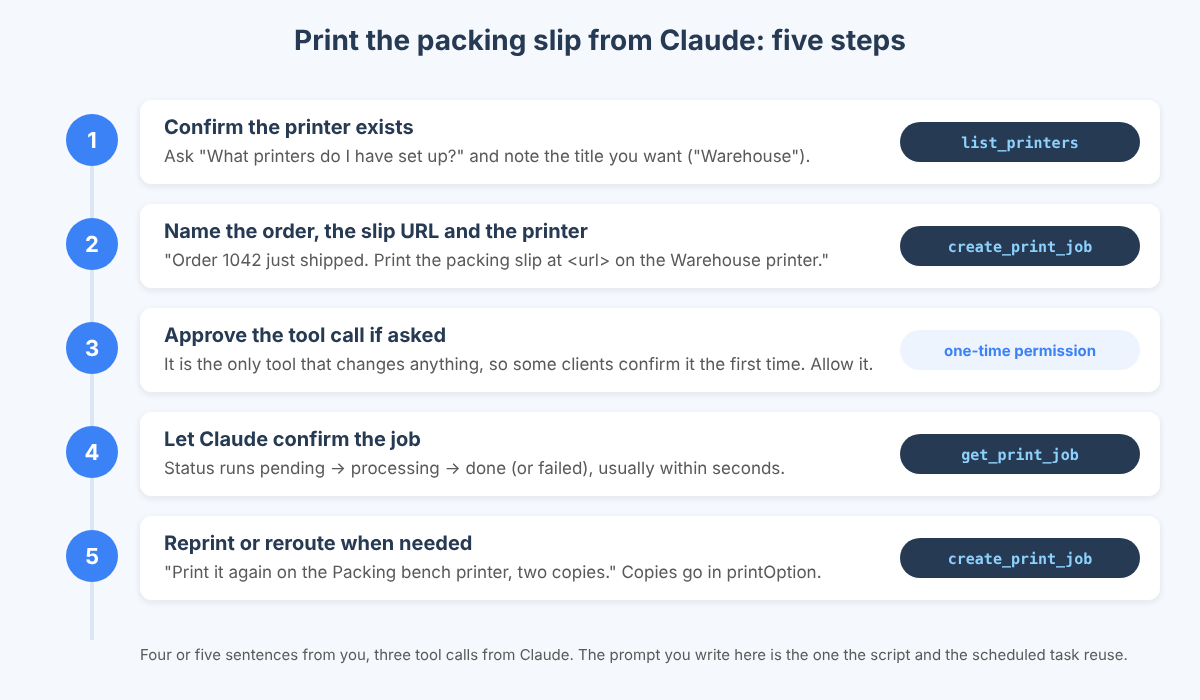
The whole exchange is four or five sentences from you and three tool calls from Claude. Once you have done it manually, you have also written the prompt the automated versions below will reuse.
How do you make Claude print automatically when an order ships?
You give Claude the trigger, because Claude Desktop and Claude Code do not watch your store for order events. There are three honest ways to do that, from “you type it” to “nobody is at the keyboard”.
| Approach | What triggers the print | Where it runs | Best for |
|---|---|---|---|
| Chat prompt | You, in Claude Desktop or Claude Code | Your machine, with the MCP server installed | Reprints, exceptions, low volume |
Script with claude -p | A webhook or shell hook that calls the script with the order ID and slip URL | Any machine where Claude Code and the MCP server are installed | Event-driven printing without a person |
| Desktop scheduled task | A schedule (“every 15 minutes, print slips for orders that shipped since the last run”) | The same local machine, through the Claude desktop app’s scheduled tasks | Batches, morning runs, stores without webhooks |
How do you script it with Claude Code?
Save this as print-packing-slip.sh on the machine where you ran claude mcp add bizprint, and call it with the order ID and the slip URL:
#!/usr/bin/env bash
# Usage: ./print-packing-slip.sh 1042 https://shop.example.com/orders/1042/packing-slip
set -euo pipefail
ORDER_ID="$1"
SLIP_URL="$2"

claude -p "Order ${ORDER_ID} has shipped. Use list_printers to find the printer titled 'Warehouse', then create_print_job with url ${SLIP_URL} and description 'Packing slip – order ${ORDER_ID}'. Check get_print_job and reply with only the job ID and its status." \
  --allowedTools "mcp__bizprint__list_printers,mcp__bizprint__create_print_job,mcp__bizprint__get_print_job" \
  --permission-prompts none \
  --output-format json
Three details matter. -p runs Claude Code non-interactively and exits when the task is done, so the script can be called from anything. --allowedTools pre-approves exactly the three BizPrint tools the job needs, named in Claude Code’s mcp__<server>__<tool> form, so the run never stalls on a permission prompt; --permission-prompts none tells Claude nobody is there to answer anything else. And --output-format json returns the result as JSON, so your webhook receiver can log the job ID or alert on a failed status. The Claude Code non-interactive mode docs cover every flag.
Wire the script to the event. In WooCommerce, “shipped” is normally the Completed status: create a webhook under WooCommerce → Settings → Advanced → Webhooks for “Order updated”, point it at a small receiver on the same machine (or one that can SSH to it), and have the receiver call the script when the payload’s status is completed. In your own app, call the script from the code path that marks an order shipped. The receiver is a few lines in whatever language your stack already uses; the only requirement is that it runs where the MCP server is installed.
How do you schedule it instead?
Create a Desktop scheduled task in the Claude desktop app that runs on your machine on a schedule and uses the MCP servers configured there, with a prompt such as: “List orders that shipped since the last run from [your orders endpoint], and for each one print its packing slip on the Warehouse printer with create_print_job, then report the job IDs.” Anthropic’s scheduling comparison spells out the trade-off that matters here: cloud scheduled tasks run on Anthropic’s infrastructure with no access to your local MCP servers, Desktop scheduled tasks run on your machine and can use them, and /loop inside a Claude Code session polls on an interval only while that session stays open. Because the BizPrint MCP Server is local, the Desktop task (or an OS-level cron job that calls the script above) is the one that can print.
What can Claude do with a printer, and what can’t it?
Claude can find printers and stations, send any fetchable URL to a printer, and check or list jobs; it cannot render documents, configure printers, or notice that an order shipped on its own. The seven tools in the server define the whole surface:
| Claude can | Claude cannot |
|---|---|
List printers and stations and read their settings (list_printers, get_printer, list_stations, get_station) | Add, rename or configure a printer or station; that happens in the BizPrint dashboard and the station app |
Send a document URL to a printer with a description and optional print options (create_print_job) | Build the packing slip itself; it needs a URL to a page or PDF your system produces |
Check one job or page through recent jobs (get_print_job, list_print_jobs) | Cancel a job once it is sent, or retry a failed one without being asked |
Pick the right printer from a name you give it, and explain a failed status in plain language | Watch WooCommerce, Shopify or your app for events; a script, webhook or schedule has to call it |
| Run from Claude Desktop, Claude Code, or a scheduled task on the machine where the server is installed | Run from a web-only or cloud-side client; the server is local and there is no hosted version |
One more boundary worth stating plainly: the agent never sees your printer directly. The MCP server signs each request to the BizPrint Cloud API with your secret key (HMAC-SHA256), BizPrint fetches the URL and hands the rendered document to your station, and the station drives the printer. That is the same path the BizPrint Print API uses from application code, which means anything you build for the agent, such as a signed packing-slip URL, works unchanged from your own backend later.
What does each print cost?
Each successful print is billed per job on whatever BizPrint plan you are on, and the MCP server itself carries no extra fee. The first 25 prints are free with no card required, development mode lifts that limit while you test, and the API and MCP server are included on every plan. Current per-print rates and the plan comparison are on the pricing page.
Frequently asked questions
How do you print a packing slip?
You print a packing slip by sending the order’s packing-slip page or PDF to a printer, either from your store platform (WooCommerce and Shopify plugins do this on an order status) or, with the BizPrint MCP Server installed, by asking Claude to send the slip’s URL to a named printer with create_print_job.
Can Claude print automatically when an order ships?
Yes, with a trigger. Claude does not monitor your store, so a webhook or shell hook calls a claude -p script when the order status changes, or a Desktop scheduled task on the machine running the MCP server prints the slips for orders shipped since its last run.
How do I generate a packing slip for Claude to print?
Your order system generates it: expose a route such as /orders/{id}/packing-slip that renders the slip as HTML or PDF, or use the link your invoice plugin or document storage already provides. Claude passes that URL to BizPrint, which fetches and prints it.
Do I have to print the packing slip?
No. Many stores ship with the shipping label alone or email the slip. Print one when a warehouse picker, a gift recipient or a returns process needs paper; the recipe here makes that a sentence to Claude instead of a trip to a print dialog.
Does the BizPrint MCP Server have a hosted version?
No. The server runs locally on the machine where Claude Desktop or Claude Code runs and connects directly to the BizPrint Cloud API; there is no hosted or remote version. A web-only client cannot reach it.
Which BizPrint plan do I need to print from Claude?
Any plan. The MCP server and Print API are included on every BizPrint plan, you pay per successful print, and the first 25 prints are free with no card required. Plan details are on the pricing page.
Can other AI agents use the same print workflow?
Yes. Any MCP client that runs local servers can call the same seven tools, and any application can call the same BizPrint Print API directly. The category explainer What Is a Print MCP Server, and Why Agents Need One covers how print fits into agent workflows generally, and a later recipe builds a Build a Reorder Agent That Prints Pick Lists Every Morning.
Give Claude a packing slip to print
Install the BizPrint MCP Server, say which order shipped, and the slip is on the warehouse printer before you finish the sentence. Your first 25 prints are free, no card required.
Sources: BizPrint AI Printing · BizPrint MCP Server repository · BizPrint developer documentation · Model Context Protocol: Introduction · Getting started with local MCP servers on Claude Desktop · Run Claude Code programmatically · Run prompts on a schedule
