

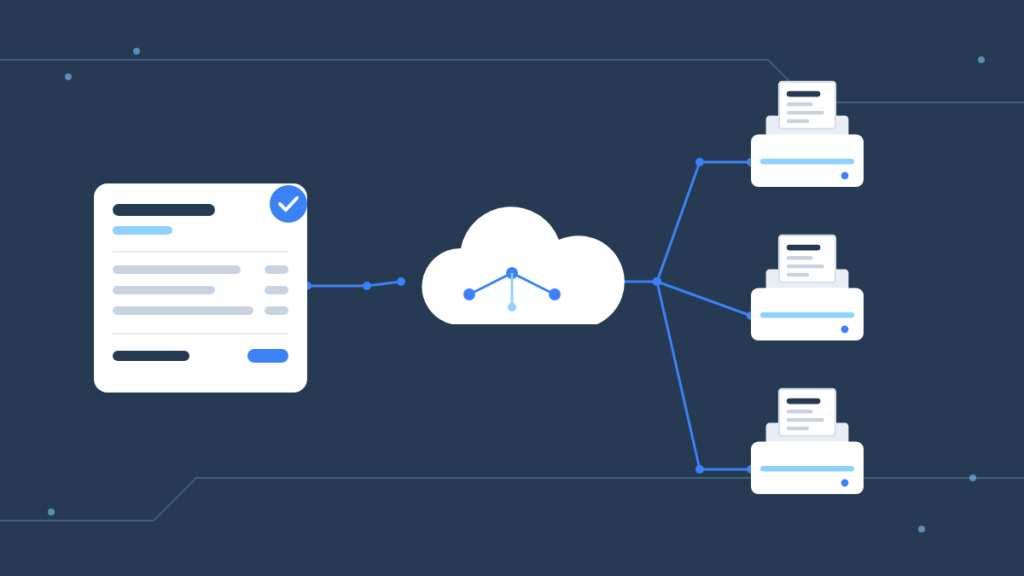
To automatically print Shopify orders, install the BizPrint for Shopify app, run the free BizPrint station app on the computer or Android device next to your printer, and map the documents you want to the printers that should produce them; from then on every new order (or every order that reaches the status you choose) prints itself, with nobody clicking Print. Shopify automatic order printing is not something the Shopify admin does on its own: Shopify’s built-in tools and its free Order Printer app produce documents only when a person asks for them, one order or one batch at a time. The gap between “an order came in” and “a piece of paper exists at the counter, the packing bench or the kitchen pass” is what this guide closes.
This is the Shopify pillar of our automatic-printing series. If you run WooCommerce instead, the same ideas are in How to Automatically Print WooCommerce Orders.
Key Takeaways
- Shopify cannot print automatically by itself. The Shopify admin and the free Shopify Order Printer app print invoices, packing slips and receipts only when someone clicks Print, individually or in bulk.
- Automatic printing needs three parts: a trigger, a cloud print service, and a station at the printer. BizPrint for Shopify listens to Shopify’s order webhooks, renders the document in the cloud, and a small station app hands it to the printer.
- Setup takes six steps and roughly five minutes. Create a free BizPrint account, create a print station, install the station app, install and connect the Shopify app, create printer locations, and choose which order events print.
- One order can produce several documents on several printers. A kitchen ticket at the pass, a packing slip at the bench and a receipt at the counter can all come from the same order, routed by document type, product or location.
- The Shopify app is on the Pro plan and is billed through Shopify. You see the charge on your Shopify invoice; the first 25 print jobs are free, with no card required, so you can test before you commit.
- Any printer that prints works, but iOS does not run a station. Stations run on Windows, macOS, Linux, Raspberry Pi OS and Android; the printer can be thermal, label, laser, inkjet or impact.
What does Shopify print natively, and what needs an app?
Shopify prints documents on demand from the admin, and everything automatic needs an app. Out of the box you can print a basic order summary from any order page, print packing slips one at a time or in bulk, and, with the free Shopify Order Printer app, print custom invoices, packing slips, receipts and labels from templates you edit in HTML, CSS and Liquid (Shopify Help Center: Printing orders, Order Printer). Every one of those paths starts with a person in the admin selecting orders and choosing Print, which then opens the browser’s print dialog.
That is fine for a store that ships twenty orders a day from one desk. It stops being fine the moment the order needs to appear somewhere a person is not sitting at a browser: a kitchen pass, a packing bench, a second location, or a counter that is busy with walk-in customers. The table below separates what the platform does from what an app has to add.
| Printing job | Shopify admin / Shopify Order Printer | Needs an app such as BizPrint |
|---|---|---|
| Print a packing slip for one order | Yes, from the order page | — |
| Bulk-print packing slips or invoices for selected orders | Yes, with a manual selection | — |
| Customize an invoice or packing slip template | Yes, HTML/CSS/Liquid in Shopify Order Printer | Templates without code (see below) |
| Print the moment an order is placed, with nobody in the admin | No | Yes |
| Print when an order is paid or fulfilled | No | Yes |
| Send a kitchen ticket to a thermal printer in the kitchen | No, only via the browser dialog | Yes |
| Print different documents on different printers from one order | No | Yes |
| Print at a second location based on where the order will be fulfilled | No | Yes |
| Print from Shopify POS to a receipt printer | Yes, for POS sales on supported POS hardware | Not needed for POS receipts; needed for online orders |
Two things in that table are worth underlining. First, “automatic” in Shopify’s own vocabulary usually means automatic fulfillment or automatic order routing; it never means a document printing without a click. Second, the browser print dialog is the hidden constraint in every native path: it requires a logged-in person, a browser, and a printer the operating system already knows about. Cloud printing removes all three.
How does Shopify automatic order printing actually work?
Automatic printing works by turning an order event into a print job and delivering that job to a printer that is not attached to anyone’s browser. In BizPrint’s case the chain has four links:
- Shopify fires a webhook. Shopify’s platform lets apps subscribe to events such as a new order being created, paid or fulfilled (Shopify developer docs: Webhooks). When you connect the BizPrint for Shopify app, it registers a webhook URL with your store, so Shopify sends the order data to BizPrint the moment the event happens.
- BizPrint matches the order to your locations. In BizPrint, a “location” is a pairing of a template with a printer. The service decides which locations the order should print to, based on the rules you set (every order, orders containing certain products or categories, orders for a given fulfillment location).
- BizPrint renders the document in the cloud. The template produces the receipt, packing slip or kitchen ticket as a print-ready document on the server, so it looks the same whichever device ends up printing it.
- The station prints it. The BizPrint station app runs on a Windows, macOS, Linux, Raspberry Pi or Android device near the printer. It holds a persistent connection to the cloud, receives the job and prints it on the local printer, whether that printer is connected by USB, Ethernet, Wi‑Fi or Bluetooth. The station is the only piece that has to be on at the store, and it has no browser and no logged-in user.
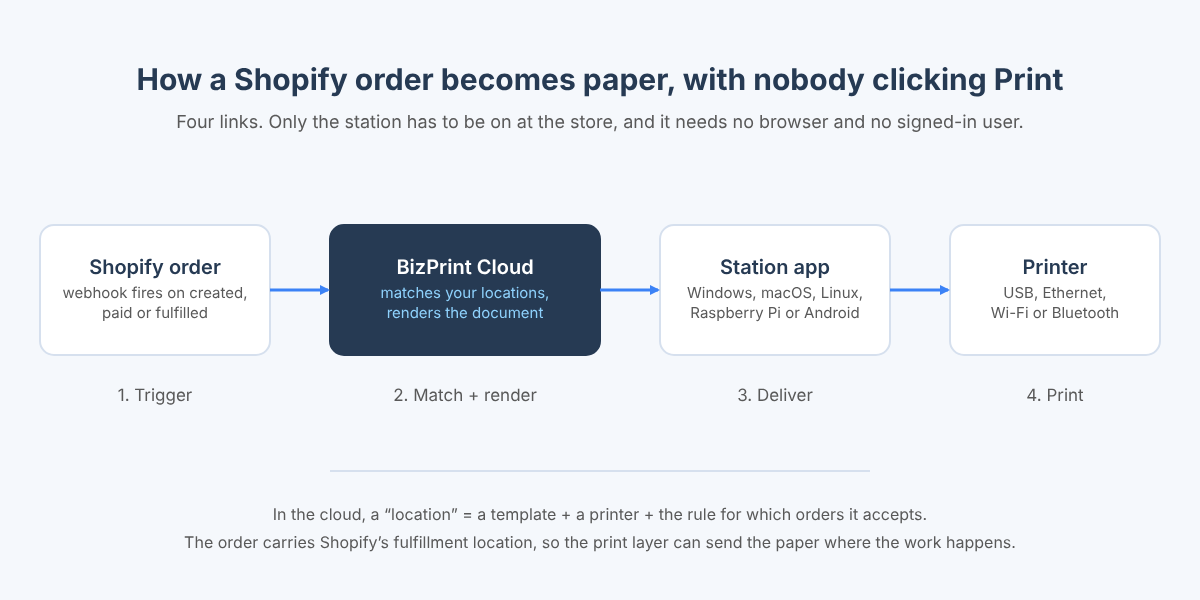
The reason this matters for Shopify specifically is that Shopify stores so often span more than one physical place. The order data already carries the fulfillment location Shopify assigned through its order routing rules (Shopify Help Center: Order routing); the print layer can read it and send the paper where the work will happen.
How do I set up BizPrint for Shopify step by step?
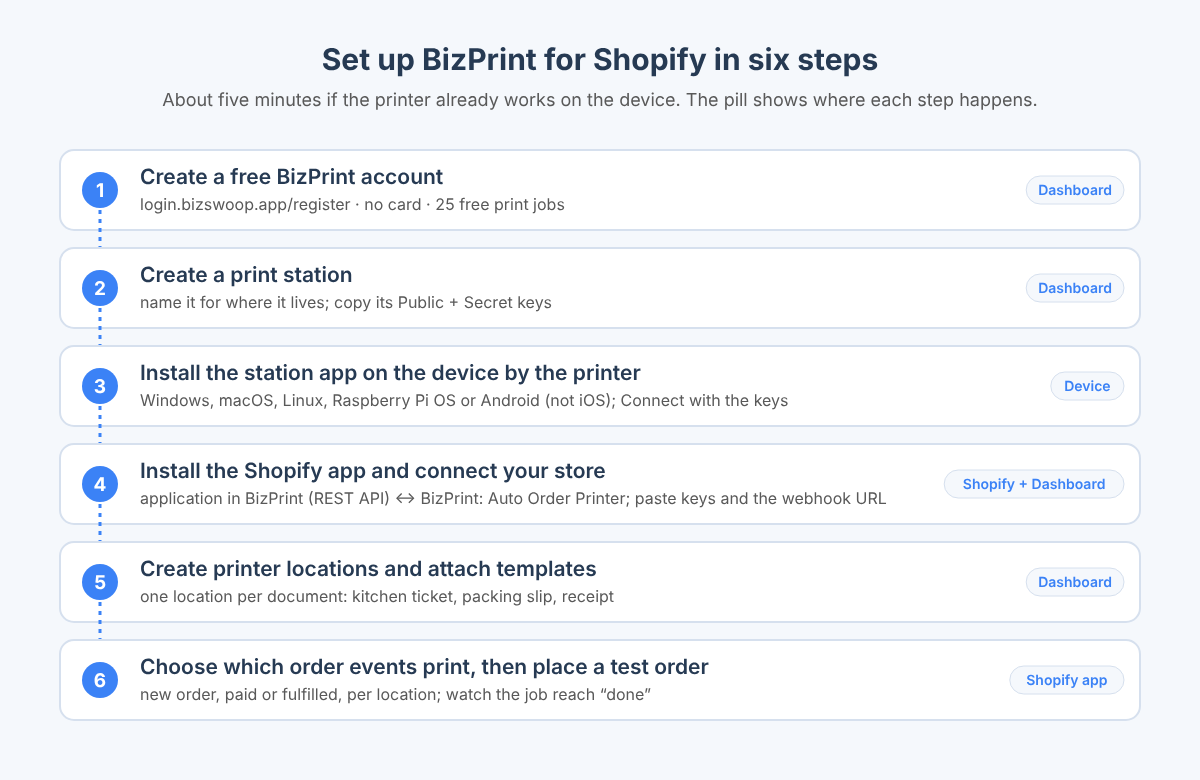
You set up BizPrint for Shopify in six steps: account, station, station app, Shopify app, printer locations, and triggers. The official Quick Start Guide has a Shopify tab that mirrors these steps; the version below adds the decisions you need to make at each one. Budget about five minutes if your printer is already working on the device.
Step 1: Create a free BizPrint account
Create your account at login.bizswoop.app/register. No card is required and the first 25 print jobs are free. Activate the account from the confirmation email within 15 days (check spam if it does not arrive), then sign in to the dashboard at print.bizswoop.app.
Step 2: Create a print station
A print station is the device that will physically talk to the printer. In the dashboard, click the + button to add a station, give it a name that says where it lives (“Kitchen Android tablet”, “Packing bench PC”), and copy the station’s Public and Secret keys. You will paste these into the station app in the next step. Create one station per device; a single station can serve several printers connected to that device.
Step 3: Install the BizPrint station app on the device next to the printer
Download the station app for the device that sits with the printer: Windows (32‑ and 64‑bit), macOS (Intel and Apple silicon), Linux (x64, ARMv7 and ARMv8, which covers Raspberry Pi OS), or Android from Google Play. iOS is not supported as a station, so an iPad cannot be the printing device; an inexpensive Android tablet or a mini PC is the usual choice for a kitchen or a counter.
On desktop, open the app, click Connect, paste the station keys and submit. On Android, tap Connect with Keys. To add a network printer on Android, go to Settings, then Add Printer, and enter the connection type, IP address and port. Receipt printers that speak ESC/POS or StarPRNT (most Epson, Star and compatible kitchen printers) are driven directly from the Android app; on desktop, any printer the operating system can print to is available to the station.
Leave the app running. On Android it uses a foreground service so it keeps receiving jobs with the screen off; on a PC, add it to startup so a reboot does not silently stop printing.
Step 4: Install the Shopify app and connect your store
This is the step that links Shopify to BizPrint, and it has two halves: one in the BizPrint dashboard and one in your Shopify admin.
- In the BizPrint dashboard, create an application: give it a name and enter your Shopify store URL. For the API version, choose REST API (the Quick Start Guide recommends it for new users and best performance). Copy the application’s Public and Secret keys.
- Install the app, BizPrint: Auto Order Printer, from the Shopify App Store into your store. The app is available on the Pro plan and is billed through Shopify, so the charge appears on your Shopify invoice and the Shopify-specific pricing is shown on the listing (full plan details are on the pricing page).
- In the app’s Application settings, paste the Public and Secret keys from step 1.
- The app generates a webhook URL once it is installed. Copy it into the REST API WebHook field of the application in the BizPrint dashboard, and click Save Changes.
That webhook is the trigger wire: from now on, Shopify tells BizPrint about order events, and BizPrint can act on them.
Step 5: Create printer locations and attach templates
In the BizPrint dashboard, under Printers, click Create your first printer location, pick the printer it should use (printers appear once their station is connected), and attach a template. A location in BizPrint is a template plus a printer plus the rules for when it fires; you will create one per document you want. A typical restaurant that also ships has three:
| Location name | Template | Printer | Fires for |
|---|---|---|---|
| Kitchen pass | Kitchen ticket (items, modifiers, pickup time, large type) | ESC/POS thermal printer in the kitchen | Every order containing food items |
| Packing bench | Packing slip (items, quantities, shipping address, no prices) | Laser or 4×6 label printer at the bench | Every order with a shipping line |
| Front counter | Customer receipt (items, prices, totals, order number) | Receipt printer at the till | Every pickup order |
Templates are where Shopify merchants used to lose the most time, because Shopify Order Printer templates are edited in Liquid, HTML and CSS. BizPrint ships standard receipt, packing-slip and ticket templates, and the plans that include the Shopify app also include the AI template developer: you describe the layout in plain language (paper width, which fields, what to leave out) and the document is generated for you. You can also add branding and per-location settings on each location.
Step 6: Choose which order events print, and run a test
The last step is telling BizPrint when to print. By default a new order prints as soon as Shopify reports it. If the paper should wait for a later moment, choose the event instead: a packing slip is usually most useful when the order is paid, and a shipping document when it is fulfilled. Pick the event per location in the app’s settings so a kitchen ticket fires on the new order while the packing slip waits for payment.
Then place a test order. Watch the station app: the job should appear and move through its states to done within a few seconds. If it does not, jump to the troubleshooting section below. While you test, turn on development mode in your BizPrint account if you expect to send more than the 25 free jobs; it lifts the limit for testing.
Ready to print Shopify orders automatically? Every BizPrint account starts with 25 free print jobs, no card required.
How do I route orders to the right printer at the right location?
You route orders by creating one BizPrint location per printer and giving each location a rule for which orders it accepts. For a single store with one printer the rule is simply “every order”. For anything more complicated, three routing patterns cover almost every store:
- By document type. The same order prints a kitchen ticket in the kitchen and a receipt at the counter because two locations, with two templates, both accept it.
- By product or category. Only orders containing items from the Food category reach the kitchen printer; only orders containing bottles reach the bar printer. The rest of the order can still go to the counter.
- By fulfillment location. Shopify assigns every order a location through its order routing rules; a store with two shops and a warehouse maps each Shopify location to the BizPrint location (and printer) at that site, so the packing slip prints where the box will be packed.
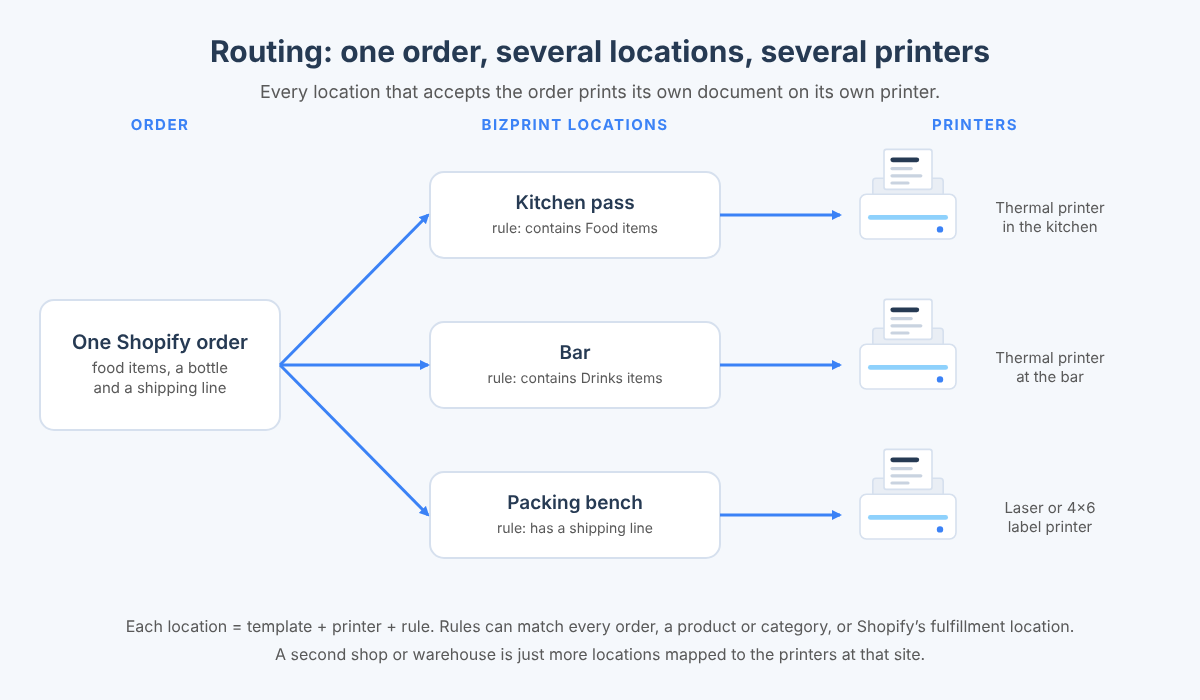
Shopify defines a location as “any physical place where you sell products, fulfill orders, or stock inventory” (Shopify Help Center: Locations), and the number you can activate depends on your Shopify plan. BizPrint does not cap printers or locations, so the constraint is Shopify’s, not the print layer’s. Multi-location routing has enough detail to deserve its own guide; it is the next piece in this series: Shopify Multi-Location Order Routing: Print at the Right Store, Every Time.
Which documents can Shopify orders print automatically?
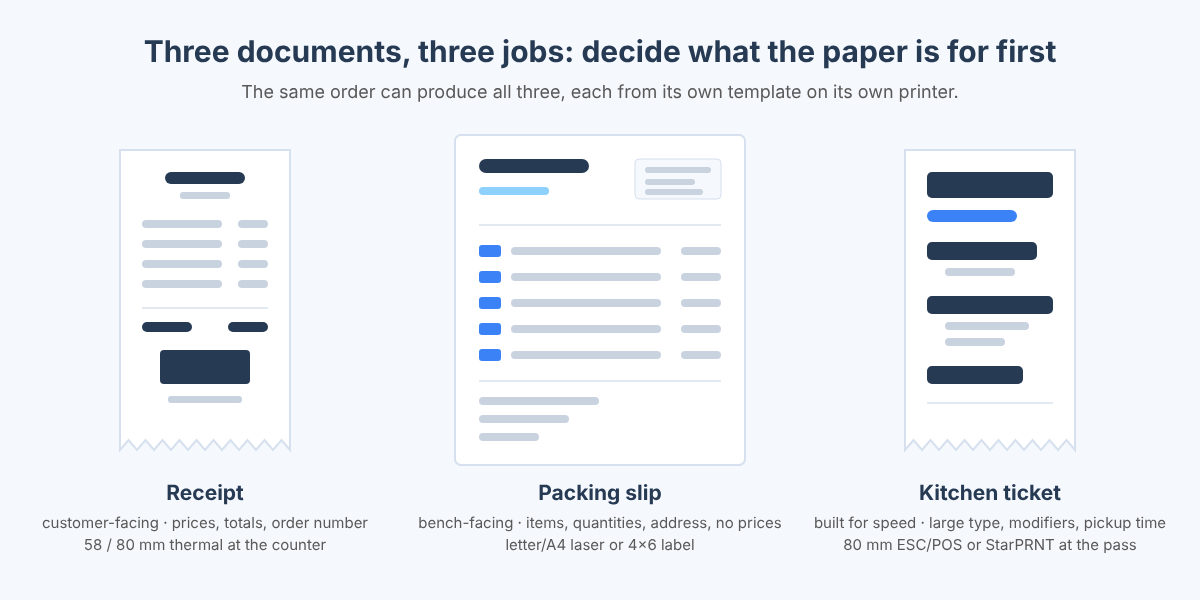
A Shopify order can automatically print any document a template can describe: customer receipts, packing slips, kitchen and bar tickets, pick lists, gift messages, shipping-prep labels and internal order summaries. The three that cover most stores are below, with the choices that matter for each.
Receipts. A receipt is the customer-facing record: items, prices, taxes, totals, order number and the store’s details. For pickup and local delivery it prints at the counter on a thermal receipt printer and goes in the bag. Keep it narrow (58 mm or 80 mm paper), and include the order number large enough to read across a counter.
Packing slips. A packing slip is the warehouse-facing record: items, quantities, variant details, the shipping address and usually no prices. It prints at the bench on letter/A4 paper or on a 4×6 label printer. Our guide to Shopify packing slips covers what the native template leaves out and how to format a slip for 4×6 thermal printers.
Kitchen tickets. A kitchen ticket is built for speed, not completeness: item names in large type, modifiers indented beneath them, the pickup or delivery time, and the order number. No prices, no marketing. Print it on an ESC/POS or StarPRNT thermal printer at the pass, and set the location to fire on the new order so the kitchen starts before anyone looks at a screen. If you are weighing paper tickets against a kitchen display, that comparison is coming in this series: Kitchen Display vs Printed Tickets on Shopify: When Paper Still Wins.
Invoices. Shopify uses “invoice” for several different documents; if you need the order invoice printed automatically for B2B or wholesale orders, How to Print an Invoice in Shopify walks through the native options and the automatic one.
One template choice applies to all four: decide what the paper is for before you decide what is on it. The most common mistake we see in support is a kitchen printing the customer receipt, complete with prices and a marketing footer, because it was the only template set up.
Which printers and devices work for Shopify automatic printing?
Any printer that your station device can print to will work, and the station runs on Windows, macOS, Linux, Raspberry Pi OS and Android (BizPrint hardware page). In practice the device and printer pairings below are what stores use:
| Where | Typical printer | Station device | Notes |
|---|---|---|---|
| Kitchen or bar | ESC/POS or StarPRNT thermal receipt printer (Epson TM series, Star TSP/mC series and compatibles), Ethernet or Wi‑Fi | Android tablet or phone | Driven directly from the Android app; add the printer by IP address and port |
| Front counter | Thermal receipt printer, USB or Bluetooth | Android device or the counter PC | Pair the printer with the device first, then select it in the station |
| Packing bench | Laser printer for A4/letter slips, or a 4×6 thermal label printer (Zebra, Brother, Dymo class) | Windows, macOS or Linux PC, or a Raspberry Pi | Install the printer in the operating system; the station lists whatever the OS can print to |
| Back office | Any laser or inkjet | Existing PC | Useful for a daily summary or B2B invoices |
What does not work as a station is iOS, so an iPad at the counter can run Shopify POS but cannot be the device that prints online orders; put a small Android device or a mini PC beside the printer instead. Cloud-ready printers with their own email or cloud-print features are not needed; BizPrint talks to the printer through the station, so the ordinary USB or network model is enough.
What are the alternatives to BizPrint for printing Shopify orders?
The honest answer is that several setups print Shopify orders, and the right one depends on whether you need the printing to be automatic, where the printer is, and what the document has to look like. Here is how the common options compare for the job this guide is about.
| Option | Automatic? | Where it prints | Templates | Best for |
|---|---|---|---|---|
| Shopify admin + Shopify Order Printer (free) | No, manual and bulk | The browser’s printer | Liquid/HTML/CSS | Low volume, one desk, someone always in the admin |
| Order Printer Pro and similar PDF apps | Not by themselves; PDF generation and email attachments are their strength | Browser or PDF download; automatic printing needs a separate cloud-print service such as PrintNode | Template editor | Branded PDF invoices sent to customers, with printing still manual |
| Restaurant-focused auto-print apps (PrinterCo and similar) | Yes, for new orders | A dedicated Android device or Windows PC with a supported receipt printer | Receipt-style customization | Single-location restaurants that only need kitchen tickets |
| Email-to-printer rules (Outlook rules, printer email addresses) | Sort of | A printer with an email address or a PC left logged in | None; prints the notification email as-is | Emergencies; fragile and printer-dependent |
| BizPrint for Shopify | Yes, on new order and on the events you choose | Any printer at any location through a station app | Standard templates, AI template developer, branding | Multi-document, multi-printer and multi-location stores; restaurants, retailers and fulfillment teams |
When to stay native: if one person processes every order at one desk, and a packing slip printed in a batch at 4 pm is all you need, Shopify Order Printer is the right tool and costs nothing. When to move to automatic printing: the first time an order should have printed somewhere nobody was looking. Our full head-to-head on the packing-slip apps is scheduled in this series: Shopify Packing Slips: Order Printer vs Order Printer Pro vs BizPrint.
If you are a developer and none of the apps fit, the same printing engine is available as a REST API; see How to Add Receipt and Label Printing to Any App: The Print API Guide. Shopify Flow can send HTTP requests, which is one way to drive a print from a custom Flow trigger; that integration is the subject of a later guide: Shopify Flow + BizPrint: Print on Any Trigger.
How do I troubleshoot Shopify orders that are not printing?
Work from the trigger toward the printer: confirm the webhook arrived, confirm the location accepted the order, confirm the station is online, then confirm the printer itself. Almost every “it stopped printing” ticket lands in one of the cases below.
- Nothing arrives in BizPrint. The webhook is missing or mis-pasted. Open the application in the BizPrint dashboard and check that the REST API WebHook field holds the URL the Shopify app generated after installation; re-save it. If you reinstalled the Shopify app, the webhook URL changed. The documentation’s webhook connection fix covers the same checks with a short video.
- The job is created but no location fires. The order did not match any location rule: the product is in a category the kitchen location does not accept, or the trigger event is set to “fulfilled” while you are testing with an unfulfilled order. Temporarily set one location to accept every order to confirm the chain works, then narrow it again.
- The job sits in “connecting to printer”. The station is offline. On Android, check that battery optimization is not killing the app and that the device is on Wi‑Fi; on a PC, check that the station app is running and that the machine has not gone to sleep. A station that shows as disconnected in the dashboard cannot receive jobs.
- The job prints but on the wrong printer, or twice. Two locations accept the same order with the same printer, or the station has the printer added twice. Give each location a single clear rule, and check the station’s printer list for duplicates.
- The job prints with cut-off margins or blank space. The template’s paper width does not match the printer (an 80 mm template on a 58 mm printer), or a macOS printer driver is padding the page. Set the template width to the printer’s paper, and on macOS check the printer’s page settings.
- You have hit the free limit. The first 25 print jobs are free; after that, printing pauses until a plan is active or development mode is on for testing. The dashboard shows the count.
A test order is the fastest diagnostic for all six. Create a $0 or discounted test product in Shopify, place an order from an incognito window, and watch the station app and the dashboard job list at the same time.
Does automatic printing work for Shopify restaurants, retailers and fulfillment teams alike?
Yes, and the differences are in the documents and the triggers, not the setup. The same six steps apply, but the three store types below end up with different locations.
Restaurants and food trucks need the kitchen ticket within seconds of the order, so the kitchen location fires on the new order, prints on an ESC/POS thermal printer, and carries pickup time and modifiers in large type. A second location at the counter prints the customer receipt for pickup orders. Online ordering via Shopify, with the kitchen printer printing itself, is the single most common BizPrint setup across every platform we support, and the holiday-season version of it is the subject of the WooCommerce companion piece: Prepare Your WooCommerce Kitchen and Fulfillment for Holiday Order Volume.
Multi-location retailers care about the packing slip reaching the store that will actually fulfill the order. Map Shopify locations to BizPrint locations, let Shopify’s order routing decide the fulfillment location, and the slip prints at that store’s bench. A real example of this setup, with the routing rules spelled out, is the walkthrough scheduled later in this series: Walkthrough: A Multi-Location Retailer on Shopify.
Fulfillment and warehouse teams usually want the packing slip to print when the order is paid (not when it is placed, to avoid printing slips for orders that fail payment), on a laser printer at the bench, sorted by the time it printed. Some add a second location that prints a pick list per order on a label printer so pickers carry the list with the bin.
Frequently asked questions
Can Shopify automatically print orders?
Not on its own. The Shopify admin and the free Shopify Order Printer app print packing slips, invoices and receipts only when someone selects the orders and clicks Print. To print automatically when an order is placed, paid or fulfilled, you install an app that listens to Shopify’s order webhooks and sends the document to a printer; BizPrint for Shopify is built for exactly that.
How do I print orders from Shopify to a receipt printer?
Run the BizPrint station app on a Windows, macOS, Linux, Raspberry Pi or Android device connected to the receipt printer, create a location in BizPrint that pairs a receipt template with that printer, and set it to fire on the new order. Every Shopify order then prints a receipt there without anyone in the admin. Shopify POS can also print receipts for in-person sales on supported POS hardware, but that covers POS transactions, not online orders.
How do I print Shopify orders to a kitchen printer?
Put an Android tablet or a small PC in the kitchen with the BizPrint station app, add the ESC/POS or StarPRNT thermal printer to it by IP address, create a kitchen-ticket location that accepts orders containing food items, and set it to fire on the new order. Tickets print at the pass within seconds of the order, with modifiers and pickup time, and nobody has to watch a screen.
Does Shopify have an order printer?
Yes. Shopify Order Printer is Shopify’s free app for printing custom invoices, packing slips, receipts and labels from the admin, with templates you edit in HTML, CSS and Liquid. It prints on demand through the browser’s print dialog; it does not print automatically and it does not send documents to printers at other locations.
How do I automatically print packing slips in Shopify?
Install BizPrint for Shopify, create a packing-slip location pointed at the printer on your packing bench, and set its trigger to the event you want (paid is the usual choice, so slips are not printed for failed payments). The slip prints at the bench for every qualifying order. For template details, including 4×6 thermal formatting, see our Shopify packing slip guide.
Can I print Shopify orders at multiple locations?
Yes. Create one BizPrint location per printer, map each to the Shopify fulfillment location it serves, and let Shopify’s order routing assign the order; the document prints where the order will be fulfilled. BizPrint does not limit the number of printers or locations, though Shopify’s plan sets how many Shopify locations you can activate.
What does BizPrint for Shopify cost?
The Shopify app is included on the Pro plan and is billed through Shopify, so it appears on your Shopify invoice, and the Shopify-specific pricing is shown on the app listing. Your first 25 print jobs are free with no card required, so you can set everything up and test before paying. Current plan details are on the pricing page.
Do I need special printers or a cloud-ready printer?
No. BizPrint prints through a station app on an ordinary computer or Android device, so any printer that device can print to works: thermal receipt printers, label printers, laser and inkjet printers, connected by USB, Ethernet, Wi‑Fi or Bluetooth. The one hardware rule is that the station cannot be an iOS device.
Can I use the same printing setup for WooCommerce or a custom app?
Yes. The stations, locations and templates are platform-neutral; the Shopify app, the WooCommerce plugin and the Print API are three different triggers for the same print service. A business running Shopify online and a custom ordering app can print both to the same kitchen printer. See the WooCommerce guide or the Print API guide for those triggers.
Get your Shopify orders printing themselves
Automatic printing is a five-minute setup and a one-time decision about which documents should appear where. Start with a free account, connect one station and one location, and place a test order; you will see the ticket print before you have finished reading the dashboard.
