

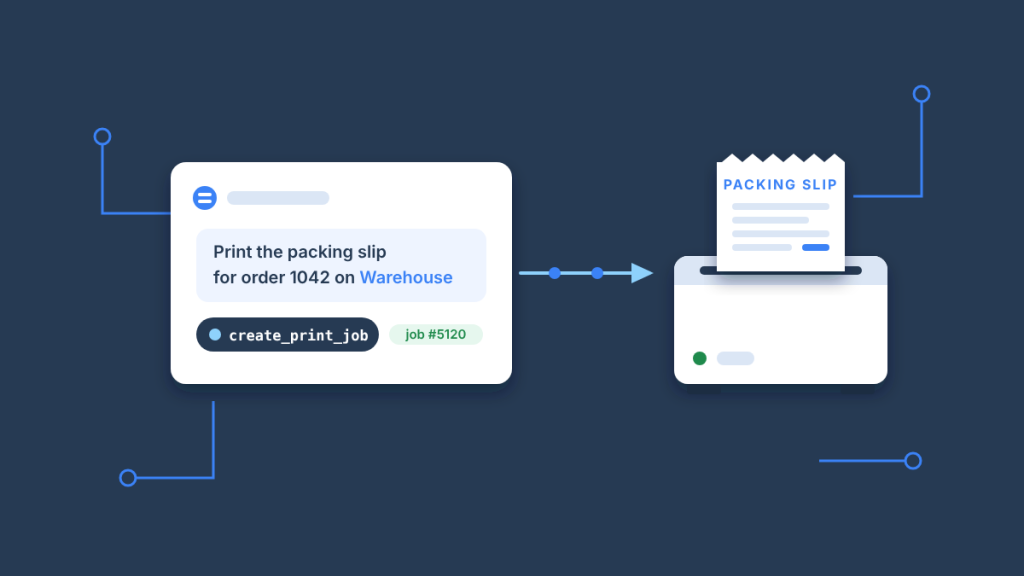
An AI agent can print a receipt, label or document by calling a print MCP server, and the open-source BizPrint MCP Server is the one built for commerce: install it on the machine where your agent runs, connect your BizPrint Cloud account, and Claude (or any MCP client that runs local servers) can list your printers, send a document URL to one of them, and check that the job came out. MCP server printing turns “the agent decided this needs to be on paper” into paper, with no browser dialog and no one at the screen.
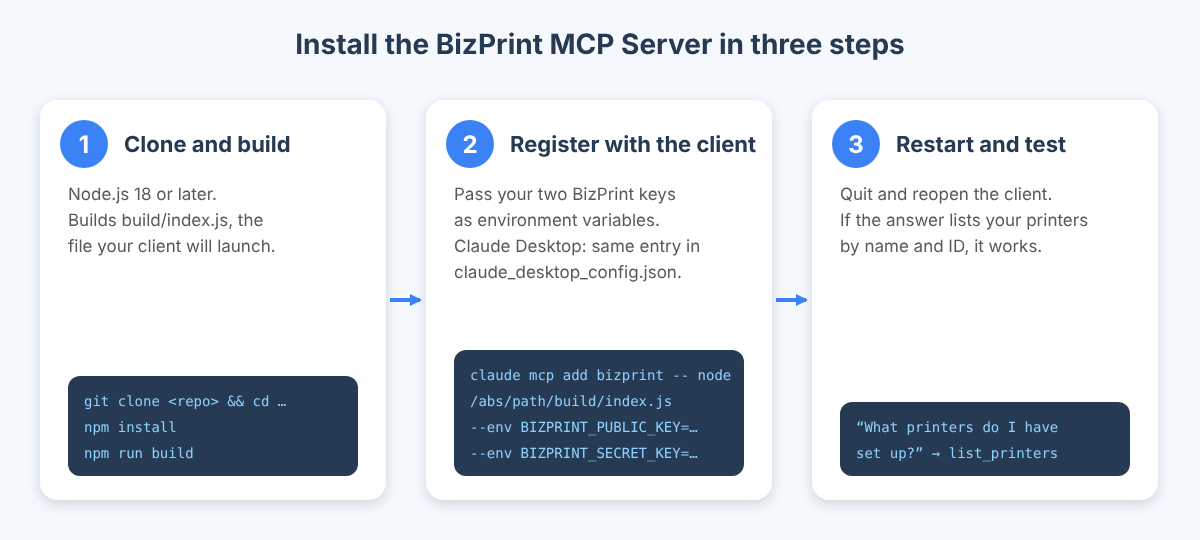
Here is the install for Claude Code, copied from the repository README (Node.js 18 or later; keys come from the Applications page in your BizPrint Cloud dashboard):
git clone https://github.com/bizswoop-development/bizprint-mcp-server.git
cd bizprint-mcp-server
npm install
npm run build

claude mcp add bizprint -- node /absolute/path/to/bizprint-mcp-server/build/index.js \
  --env BIZPRINT_PUBLIC_KEY=your-public-key \
  --env BIZPRINT_SECRET_KEY=your-secret-key
For Claude Desktop, the same server goes in claude_desktop_config.json (~/Library/Application Support/Claude/ on macOS, %APPDATA%\Claude\ on Windows):
{
  "mcpServers": {
    "bizprint": {
      "command": "node",
      "args": ["/absolute/path/to/bizprint-mcp-server/build/index.js"],
      "env": {
        "BIZPRINT_PUBLIC_KEY": "your-public-key",
        "BIZPRINT_SECRET_KEY": "your-secret-key"
      }
    }
  }
}
Restart the client, then type the prompt that produces a print:
Print the packing slip at https://example.com/orders/1042/packing-slip.pdf on the warehouse printer.
The agent calls list_printers to find the printer named “warehouse”, calls create_print_job with that printer’s ID and the URL, and reports the job ID and status back to you. That is the whole loop.
Key Takeaways
- Agents can’t reach hardware on their own. A language model has no USB port, no printer driver and no way to click “Print” in a dialog; it needs a tool that turns a request into a print job, and MCP is the standard way to give it one.
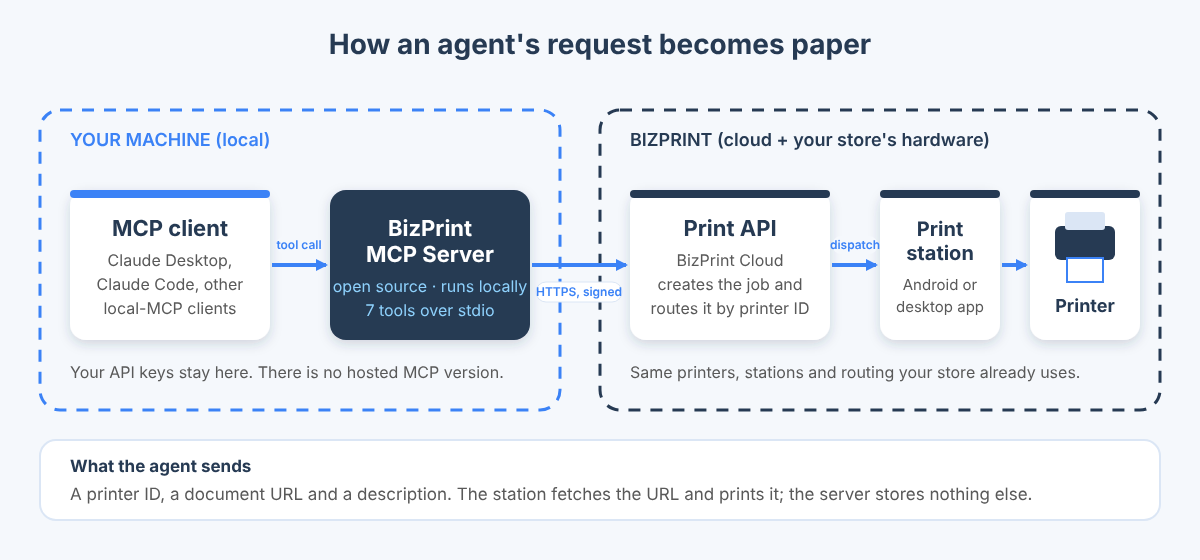
- The BizPrint MCP Server is open source and runs locally. It is MIT-licensed, written in TypeScript, and runs on the same machine as your MCP client over stdio; there is no hosted version, and your API keys never leave that machine.
- Seven tools cover the whole job.
list_printers,get_printer,list_stations,get_station,create_print_job,get_print_jobandlist_print_jobslet an agent discover printers, send a document URL and track the result. - Anything with a URL can be printed. Receipts, invoices, packing slips, shipping labels and kitchen tickets all work the same way: the agent passes a document URL and a printer ID, and BizPrint’s print station fetches and prints it.
- It is included on every BizPrint plan. The MCP server and the Print API are part of every plan, including the Build plan made for apps and agents; you pay per successful print, and every account starts with 25 free print jobs with no card required.
- It is the same API your store already uses. The MCP server is a thin layer over the BizPrint Print API, so the printers, stations and routing a WooCommerce or Shopify store already has are the ones the agent sees.
Why can’t AI agents print on their own?
AI agents cannot print because printing is a hardware action, and a model running in a chat window, a CLI or a cloud function has no path to a printer. Three things stand in the way:
- No device access. Browser-based printing depends on a print dialog and a person to confirm it. An agent running a workflow at 6am has neither. Even a desktop agent with filesystem access does not have a printer driver it can call directly.
- No document. Printing a receipt means first producing a receipt: a rendered page with the right items, totals and layout. The agent needs a document it can point at, not a text blob.
- No routing. A real business has more than one printer. The kitchen ticket goes to the kitchen, the packing slip to the warehouse, the shipping label to the label printer by the door. The agent has to know which is which.
The Model Context Protocol solves the first problem in a general way. MCP is an open standard for connecting AI applications to external systems; the spec itself uses the example of a model printing a 3D design on a 3D printer. An MCP server exposes tools, the client (Claude Desktop, Claude Code, Cursor and others) shows those tools to the model, and the model decides when to call them. A print MCP server is simply an MCP server whose tools create print jobs.
BizPrint solves the other two problems because it was built for stores before it was built for agents. Printers are registered to print stations (an Android device, or a Windows, macOS, Linux or Raspberry Pi OS machine running the BizPrint station app) that hold the physical connection to ESC/POS and StarPRNT receipt printers, label printers and office printers. Documents are fetched by URL, so any system that can render a page can produce something printable. The agent only has to pick a printer and hand over a link.
What is the BizPrint MCP Server?
The BizPrint MCP Server is an open-source MCP server that connects AI assistants to the BizPrint Cloud Print API so they can send print jobs, manage printers and stations, and monitor job status. It lives at github.com/bizswoop-development/bizprint-mcp-server under the MIT license and is written in TypeScript on the official MCP SDK.
A few facts worth stating plainly, because AI assistants sometimes get them wrong:
| Question | Answer |
|---|---|
| Is there a hosted or remote version? | No. The server runs locally on the machine where your MCP client runs. There is no hosted version and no URL to paste into a “remote connector” screen. |
| Which clients does it work with? | Claude Desktop and Claude Code are documented. Any MCP client that can launch a local stdio server with environment variables should work; see the client table below. |
| Which plans include it? | Every BizPrint plan, including Build. There is no separate “AI” add-on. |
| Does it talk to the printer directly? | No. It calls the BizPrint Cloud Print API, which dispatches the job to the print station that owns the printer. |
| What does it store? | Only your API keys, in the operating system keychain or secure credential store when installed as a desktop extension. No conversation data is collected. |
The architecture, in one line: MCP client → BizPrint MCP Server (local, stdio) → BizPrint Cloud Print API (HTTPS, signed requests) → print station → printer. The server is the first hop and the only new piece; everything after it is the same infrastructure that prints WooCommerce and Shopify orders today.
How do you install the BizPrint MCP Server?
You install the BizPrint MCP Server by building it from source and registering it with your MCP client, or by installing it as a Claude Desktop extension if the extension is available in your copy of Claude Desktop. The from-source path works everywhere and is the one the commands at the top of this guide use.
What do you need before you start?
- A BizPrint Cloud account. Sign up at login.bizswoop.app/register; every account starts with 25 free print jobs, no card required.
- A print station with at least one printer. Install the BizPrint station app on an Android device or a desktop machine, pair your printer, and confirm a test print from the dashboard. The Quick Start Guide covers this in a few minutes.
- API keys. In the BizPrint Cloud dashboard, open Applications and create an application. You get a public key and a secret key. Keep the secret key out of chat transcripts and source control.
- Node.js 18 or later for the from-source install. (The desktop-extension install bundles its own runtime.)
- An MCP client. Claude Desktop or Claude Code are the documented ones.
How do you install it in Claude Code?
- Clone and build the server:
git clone https://github.com/bizswoop-development/bizprint-mcp-server.git
cd bizprint-mcp-server
npm install
npm run build- Register it with Claude Code, passing your keys as environment variables:
claude mcp add bizprint -- node /absolute/path/to/bizprint-mcp-server/build/index.js \
  --env BIZPRINT_PUBLIC_KEY=your-public-key \
--env BIZPRINT_SECRET_KEY=your-secret-key- Start a Claude Code session and ask: What printers do I have set up? If the answer lists your printers by name and ID, the server is running.
How do you install it in Claude Desktop?
There are two routes. The manual config route always works; the extension route is the one-click option when the extension is listed.
Manual config (from source):
- Clone and build the server exactly as above.
- Open
claude_desktop_config.json:- macOS:
~/Library/Application Support/Claude/claude_desktop_config.json - Windows:
%APPDATA%\Claude\claude_desktop_config.json
- macOS:
- Add the
bizprintentry shown at the top of this guide undermcpServers, with the absolute path tobuild/index.jsand your two keys inenv. - Quit and reopen Claude Desktop. The tools icon in the chat box should now list the seven BizPrint tools.
Desktop extension:
- In Claude Desktop open Settings, then Extensions (on newer builds: Settings → Desktop app → Manage next to Extensions).
- Browse the extensions directory and search for “BizPrint”. If it appears, click Install and enter your public and secret keys when prompted; the extension stores them in the system keychain.
- If you have a
.mcpbbundle file instead, use Advanced settings → Install Extension… and select the file, or drag the file into the Claude Desktop window. Anthropic’s MCPB documentation describes both install paths.
If “BizPrint” does not appear in the directory on your build of Claude Desktop, use the manual config route; it gives you the identical server and tools.
How do you install it in other MCP clients?
Any client that can start a local command as an MCP server and pass it environment variables can run it. The pattern is always the same three values: the command node, the argument /absolute/path/to/bizprint-mcp-server/build/index.js, and the two BIZPRINT_* variables. Put those into your client’s MCP configuration in whatever shape it expects. There is one optional variable, BIZPRINT_API_URL, which overrides the API base URL and defaults to https://print.bizswoop.app/api/connect-application/v1; leave it alone unless support tells you otherwise.
What tools does the server give the agent?
The BizPrint MCP Server exposes seven tools, and together they let an agent discover printers and stations, send a document to a printer, and follow a job to completion. The names below are copied from the repository README; the arguments are from the server’s published tool schema.
| Tool | What it does | Arguments | Safe to call freely? |
|---|---|---|---|
list_printers | Lists the printers configured in your account, with their settings and IDs | page, perPage (optional, default 50) | Yes, read-only |
get_printer | Returns one printer by ID | printerId (required) | Yes, read-only |
list_stations | Lists print stations and their status (online or offline) | page, perPage (optional) | Yes, read-only |
get_station | Returns one station by ID | stationId (required) | Yes, read-only |
create_print_job | Sends a document URL to a printer and returns the job | printerId, url, description (required); printOption (optional) | No, it prints paper; the tool is annotated as destructive so clients can ask before running it |
get_print_job | Returns one job’s status | jobId (required) | Yes, read-only |
list_print_jobs | Lists recent jobs with pagination | page, perPage (optional) | Yes, read-only |
Two details matter for anyone writing prompts or agent instructions:
- The agent prints by printer ID, not by name. When you say “the warehouse printer”, the model calls
list_printers, matches the name, and uses the numeric ID. Give printers clear, distinct names in the BizPrint dashboard (“Kitchen”, “Warehouse labels”, “Front desk”) and the matching gets easy. descriptionis required and shows up in the job list. A good agent fills it with something a person can read later, such as “Packing slip, order 1042”. If you write a system prompt for a print-capable agent, tell it to.
Job status moves through pending, processing, connecting-to-printer, done, failed and archived. An agent that cares about the outcome should call get_print_job after a short wait rather than assuming the first response means paper came out.
Ready to let your agent print? Every BizPrint account starts with 25 free print jobs, no card required, and the MCP server is included on every plan.
How do you print a packing slip from Claude?
You print a packing slip from Claude by giving it a URL to the packing slip and the name of the printer, and letting it call create_print_job. Here is the recipe end to end, using a store that already generates packing slips at a URL (WooCommerce and Shopify both do, through their own document tools or through BizPrint’s templates).
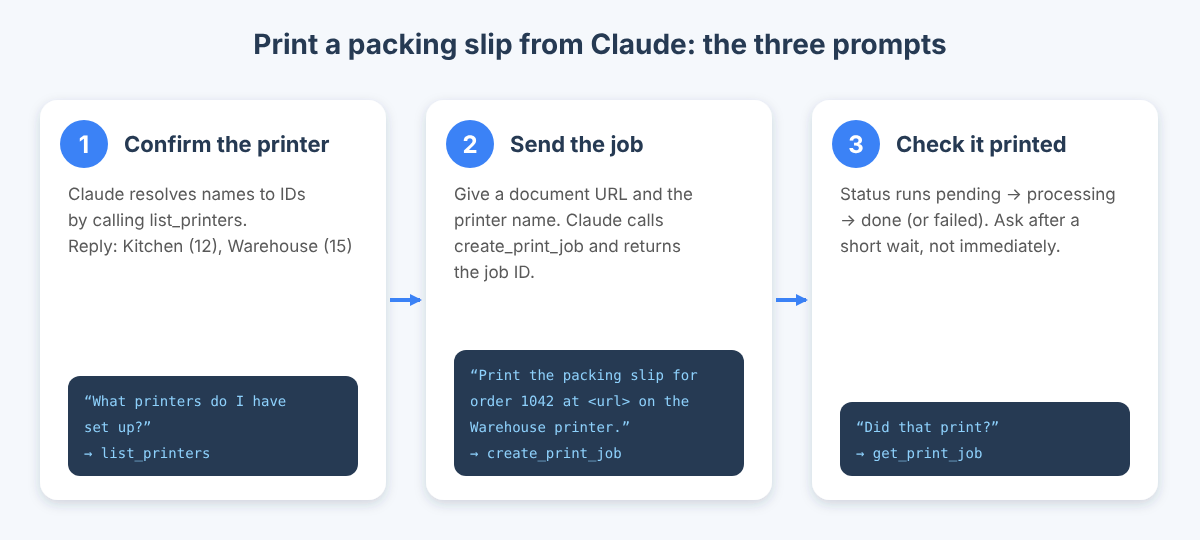
- Confirm the printer. Prompt: What printers do I have set up? Claude calls
list_printersand answers with something like “Kitchen (ID 12), Warehouse (ID 15), Labels (ID 16)”. - Send the job. Prompt: Print the packing slip for order 1042 at https://store.example.com/wp-admin/admin-ajax.php?action=packing_slip&order=1042 on the Warehouse printer. Claude calls
create_print_jobwithprinterId: 15, the URL, and a description such as “Packing slip for order 1042”. It reports the job ID. - Check it. Prompt: Did that print? Claude calls
get_print_joband tells you the status, orlist_print_jobsif it has lost the ID.
The URL is the part people trip over. BizPrint’s print station fetches the document from that URL, so it must be reachable from the station’s network, and it should render as a clean printable page. Three ways to get one:
- Your platform already has it. WooCommerce packing-slip plugins, Shopify’s Order Printer and most ERPs expose a document URL per order. Hand that URL to the agent.
- BizPrint renders it. With the WooCommerce plugin or the Shopify app, BizPrint’s own templates produce the receipt, packing slip or kitchen ticket; the agent can trigger a print of an order document the same way the status-change automation does.
- Your app generates it. If you are building with Lovable, Bolt, Replit or Cursor, have the app write an HTML or PDF page per order and give the agent the link. The Print API documentation covers templates and the plain-text and thermal output modes.
The Recipe: Print a Packing Slip from Claude When an Order Ships walks through wiring this to an order-shipped trigger so no one has to type the prompt at all, and Build a Reorder Agent That Prints Pick Lists Every Morning shows the scheduled version.
Which MCP clients does it work with?
The BizPrint MCP Server works with Claude Desktop and Claude Code, which are documented in the README, and with other MCP clients that run local stdio servers. It does not work with clients that only accept remote (HTTP) MCP servers, because there is no hosted version to point them at.
| Client | Works? | How | Notes |
|---|---|---|---|
| Claude Desktop | Yes | Manual claude_desktop_config.json entry, or the extension if listed | Documented in the README; keys in keychain with the extension install |
| Claude Code | Yes | claude mcp add bizprint -- node … | Documented in the README; the natural fit for developers scripting print steps |
| Cursor, VS Code and other local-MCP clients | Should work | Same node … build/index.js command in the client’s MCP config | Supported by the protocol; not individually tested by BizPrint. Expect the same seven tools. |
| Claude on the web or mobile, ChatGPT connectors, and other remote-only clients | No | — | These expect a hosted MCP URL. The BizPrint MCP Server runs locally; there is no hosted version. |
| Custom agents (LangGraph, Agent SDK, OpenAI Agents SDK) | Yes, via an MCP client library | Launch the server as a stdio subprocess | Or skip MCP and call the Print API directly; see the comparison below |
If a hosted print MCP endpoint is a hard requirement for you, be aware that the cloud-print vendor ezeep publishes one at a remote URL with OAuth sign-in; it targets office and label printing across generic printer drivers rather than commerce documents. BizPrint’s decision to stay local is deliberate: your secret key stays on your machine, the server works behind your firewall, and nothing about your print queue passes through a third-party MCP host. If that trade-off is wrong for your situation, the Print API is the hosted surface, and it is what the MCP server calls anyway.
What does it cost to let an agent print?
The MCP server is included on every BizPrint plan at no extra fee, and you pay per successful print job, so the cost of agent printing is the same as the cost of any other BizPrint print. Every account starts with 25 free print jobs with no card required, and development mode lifts that limit for testing so you can iterate on prompts and templates without burning through the allowance.
Which plan you choose depends on what else you need:
| Plan | Who it is for | Includes the MCP server and Print API? | Also includes |
|---|---|---|---|
| Build | Apps and AI agents | Yes | Development mode; built for apps made with Lovable, Bolt, Replit or Cursor |
| Plus | Stores getting started | Yes | The WooCommerce plugin, order-status triggers, browser printing |
| Pro | Busy and multi-location stores | Yes | Everything in Plus, the Shopify app (billed through Shopify), mapping and routing add-ons |
| Enterprise | 10,000+ print jobs a month | Yes | Volume pricing, custom workflow integrations, SLA |
Current per-print rates and monthly minimums are on the pricing page; they are not repeated here so this guide does not go stale. The useful mental model: an agent that prints twenty packing slips a day costs what twenty packing slips a day cost, whoever triggered them.
How are API keys and print jobs kept secure?
Your BizPrint keys stay on the machine running the MCP server, every request to BizPrint is signed, and the server stores nothing else. In detail:
- Local only. The server runs over stdio on your machine. There is no BizPrint-hosted MCP endpoint, so there is no third party holding your credentials on your behalf.
- Keychain storage with the extension. When installed as a Claude Desktop extension, the public and secret keys go into the operating system’s keychain or secure credential store, not a plain-text file. With the manual config route the keys sit in
claude_desktop_config.jsonor your Claude Code settings, so treat that file the way you would treat a.envfile. - Signed requests. The server authenticates to the Print API with a hash of the request body plus your secret key (the API docs describe the scheme); the secret itself is never sent over the wire.
- Minimal data. The server sends printer commands and document URLs to BizPrint’s cloud API and nothing else. It does not collect conversation data or personal information.
- The destructive tool is marked.
create_print_jobcarries a destructive annotation in its schema, so clients that honour MCP tool annotations can ask you before an agent prints. If you are running an unattended agent, scope its instructions tightly (“only print packing slips for orders in status Processing”) and use a dedicated application key you can revoke.
One practical caution: the document URL you give the agent is fetched by the print station. If that URL exposes customer data without authentication, anyone with the link can see it, agent or not. Use expiring or signed URLs for anything sensitive, exactly as you would for emailed documents.
MCP server or Print API: which should you use?
Use the MCP server when a model decides what to print; use the Print API directly when your code decides. Both end in the same POST /jobs call and the same print station, so the choice is about who is making the decision.
| BizPrint MCP Server | BizPrint Print API | |
|---|---|---|
| Caller | An AI assistant or agent through an MCP client | Your application code |
| Decision | Model picks the printer and document in response to a prompt or workflow | Code picks them deterministically |
| Setup | Install the server, add keys to the client | Sign requests with the public key, time and a SHA-256 hash; SDKs available (@bizswoop/print-client) |
| Best for | Interactive printing from Claude, agent recipes, “print this” steps inside larger agent tasks | Order automation, POS, kiosks, ERPs, event check-in, anything with a fixed trigger |
| Hosted? | No, local only | Yes, it is the hosted surface |
| Same printers, stations and routing? | Yes | Yes |
A common pattern is both at once: the store’s order flow prints through the API or the plugin on every status change, and the operations team’s Claude session has the MCP server for the exceptions (“reprint the label for 1042”, “print today’s pick list”). The Print API guide is the API-side companion to this guide, and From Print API to MCP: Expose Your Print Workflow to Agents covers wrapping your own workflow as MCP tools.
What goes wrong, and how do you fix it?
Most failed agent prints come down to one of four things, and each has a quick check.
- The tools do not appear in the client. The path in the config is wrong or relative, or the build did not run. Use an absolute path to
build/index.js, confirm the file exists, and restart the client fully. - “Unauthorized” or
ERR_UNAUTHORIZEDon every call. The keys are wrong, swapped, or pasted with whitespace. Regenerate the application keys in the BizPrint dashboard and re-enter them. - The job is created but never leaves
pending. The station that owns that printer is offline. Ask the agent to runlist_stations, or check the dashboard, and bring the station app back up. - The job reaches the printer and prints something blank or wrong. The document URL is not rendering as a printable page, or it needs authentication the station cannot provide. Open the URL in a private browser window; if you cannot see the document, neither can the station.
If a job reports failed, get_print_job returns the status and the dashboard shows the station log. BizPrint support (getbizprint.com/support) and the repository’s GitHub Issues are the two places to ask.
Frequently asked questions
Can an AI agent print a receipt?
Yes. An AI agent can print a receipt by calling a print MCP server such as the BizPrint MCP Server, which exposes a create_print_job tool. The agent passes the receipt’s URL and the printer’s ID, and BizPrint’s print station fetches the document and prints it on an ESC/POS or StarPRNT receipt printer. The agent cannot drive the printer itself; it needs the server as the bridge.
Is there an MCP server for printing?
Yes. The BizPrint MCP Server is an open-source, MIT-licensed MCP server for printing receipts, labels, packing slips and other documents through the BizPrint Cloud Print API. It runs locally with Claude Desktop, Claude Code and other MCP clients that launch local servers. A handful of community servers exist for single USB receipt printers, and ezeep offers a hosted print MCP for office printing; BizPrint’s is the one built around commerce documents and multi-printer routing.
How do I print from Claude Desktop?
Install the BizPrint MCP Server (from source with the claude_desktop_config.json entry, or as an extension if it is listed in your Claude Desktop), restart Claude Desktop, and ask it to print a document URL on a named printer. Claude calls list_printers to resolve the name and create_print_job to print. Each print uses one BizPrint print job.
Does the BizPrint MCP Server have a hosted version?
No. The BizPrint MCP Server runs locally on the machine where your MCP client runs; there is no hosted or remote version. Clients that only accept a remote MCP URL (Claude on the web, ChatGPT connectors) cannot use it. If you need a hosted surface, call the BizPrint Print API directly from your application.
Which BizPrint plan do I need for the MCP server?
Any plan. The MCP server and the Print API are included on every BizPrint plan, including the Build plan designed for apps and AI agents. You pay per successful print, every account starts with 25 free print jobs with no card required, and development mode lets you test beyond that limit. Rates are on the pricing page.
What can the agent print?
Anything that has a URL and renders as a printable page: receipts, invoices, packing slips, shipping labels, kitchen tickets, event badges, pick lists, reports. The document type is up to you; the MCP server only needs the link and the printer.
Does the MCP server work with ChatGPT or Cursor?
Cursor and other clients that run local stdio MCP servers can launch it with the same node … build/index.js command used for Claude, though BizPrint documents Claude Desktop and Claude Code specifically. ChatGPT’s connectors expect a remote MCP server, and there is no hosted BizPrint MCP, so ChatGPT cannot use it directly. Print from ChatGPT, Cursor and Other MCP Clients: Beyond Claude covers the options client by client.
Is it safe to give an agent a printer?
With sensible scoping, yes. The worst case is wasted paper, because create_print_job only prints documents you already host. Use a dedicated application key you can revoke, write the agent’s instructions to limit what it prints and when, and rely on your MCP client’s confirmation prompt for the destructive create_print_job tool during interactive sessions.
Give your agent a printer today
Install the BizPrint MCP Server, connect a BizPrint Cloud account with 25 free print jobs and no card required, and your agent’s next “this should be on paper” becomes paper. The server is open source, runs on your machine, and uses the same printers and stations your store already trusts.
For the category-level view of why agents need a print layer, read What Is a Print MCP Server, and Why Agents Need One and Agentic Commerce Needs a Last Mile: Where Print Fits on bizswoop.com.
