

Last updated October 2026
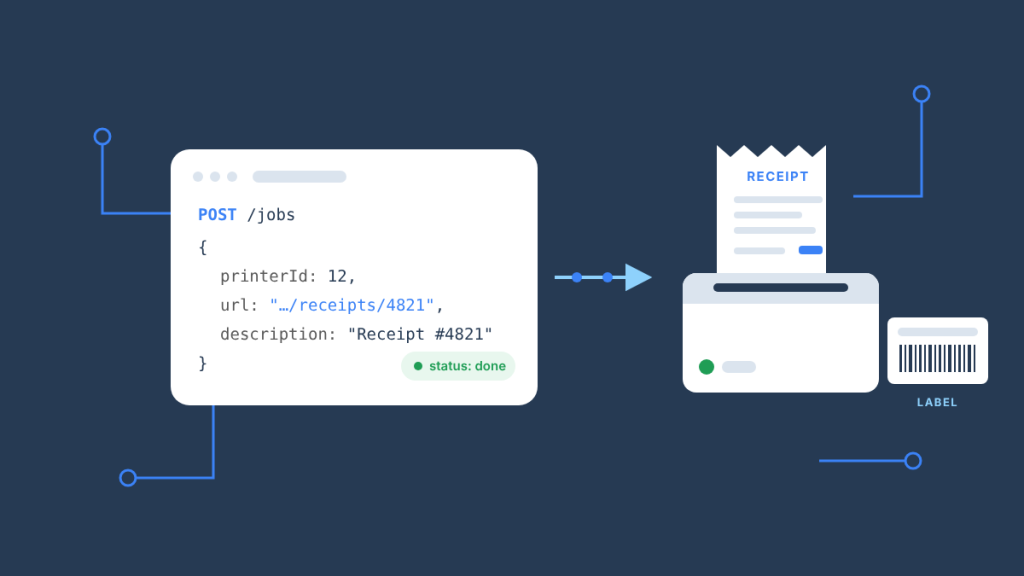
To add receipt or label printing to your app, send one signed POST /jobs to a cloud print API with a printer ID and the URL of the document, and a station at the location prints it on a real receipt or label printer, with no browser dialog and nobody standing at the screen. That is what the BizPrint Print API does: your app, your agent or your AI-built prototype makes an HTTPS call, BizPrint Cloud fetches the page you point it at, and the station app on a computer or Android device at the counter hands it to the printer. This print API guide shows the request, the signing and what comes out of the printer, in the first screen, then covers the architecture, every endpoint, document types, hardware, cost, when not to use a cloud print API, and the agent version of the same call.
Here is the whole integration in one server-side Node function. The endpoint, body fields and signing rule are taken from the BizPrint HTTP reference and the developer docs; the keys come from the Applications page of your BizPrint Cloud account and stay on your server.
// print.js — Node 18+ (built-in fetch and crypto). Run: node print.js
import { createHash } from "node:crypto";

const API = "https://print.bizswoop.app/api/connect-application/v1";
const PUBLIC_KEY = process.env.BIZPRINT_PUBLIC_KEY;
const SECRET_KEY = process.env.BIZPRINT_SECRET_KEY;

const sign = (s) => createHash("sha256").update(`${s}:${SECRET_KEY}`).digest("hex");

export async function print({ printerId, url, description }) {
  const body = { printerId, url, description, publicKey: PUBLIC_KEY, time: Math.floor(Date.now() / 1000) };
  const res = await fetch(`${API}/jobs`, {
    method: "POST",
    headers: { "Content-Type": "application/json" },
    body: JSON.stringify({ ...body, hash: sign(JSON.stringify(body)) }),
  });
  const json = await res.json();
  if (!res.ok) throw new Error(`${json.errorCode}: ${json.message}`);
  return json.data; // { id, status: "pending", printerId, url, description, createdAt, updatedAt }
}

// Example: print the receipt for order 4821 on printer 12
console.log(await print({ printerId: 12, url: "https://yourapp.example/receipts/4821?t=unguessable-token", description: "Receipt #4821" }));
What you get back is a job object with status: "pending". Within a few seconds the status moves through processing and connecting-to-printer to done, and a receipt comes out of printer 12. If the printer ID is wrong, the API answers 403 ERR_JOB_CREATING_INVALID_PRINTER_ID with the message “Invalid printer ID”, which is an error an AI coding tool can read and fix on its own.
Key Takeaways
- A print API turns printing into an HTTP call. Your app sends a document URL and a printer ID; the service fetches the page and prints it on physical hardware, so printing becomes a server-side event rather than something a person triggers in a browser.
- The BizPrint Print API has seven endpoints and one signing rule.
GET /printers,GET /printers/{id},GET /stations,GET /stations/{id},POST /jobs,GET /jobs/{id}andGET /jobs, all signed with a SHA-256 hash of the request plus your secret key. - The architecture is app → BizPrint Cloud → station → printer. The station is a small app on a computer, Raspberry Pi or Android device at the location; it is the piece that turns a cloud job into paper, and it is why no browser dialog is involved.
- Browser printing cannot do this job.
window.print()opens a dialog, blocks until someone dismisses it and guesses the paper size; a cloud print API prints on a trigger with nobody at the screen. - It is built for the restaurant, retail, fulfillment and events use cases. Kitchen tickets, packing slips, shipping labels, badges, wristbands, work orders and pick lists are all a URL plus a printer ID.
- The API is included on every BizPrint plan, and agents get the same API through MCP. You pay per successful print, the first 25 are free with no card, and the open-source BizPrint MCP Server exposes the same calls to Claude and other local MCP clients.
What is a print API?
A print API is a set of rules that lets a website or app send documents to a printing service instead of relying on a person to press Print. The general definition of an API is a set of rules that allows different software programs to communicate with each other; a print API applies that to printing, so the communication runs between your application and the service that owns the printers. The app says what to print and where; the service handles rendering, queuing, delivery to the device and status reporting. A cloud print API goes one step further and lets the app print to any internet-connected printer, whether that printer is in the same building as the server or on another continent.
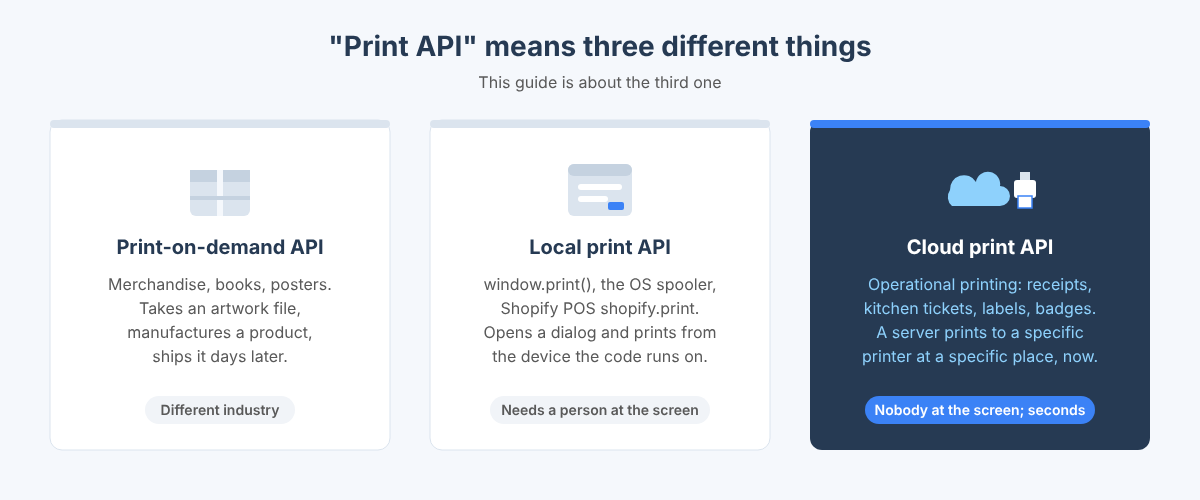
The term covers two different industries, and most of what ranks for “print api” today is the other one. Print-on-demand APIs (merchandise, books, posters) take an artwork file, manufacture a physical product and ship it to a customer days later. The print API this guide is about is for operational printing: a receipt that has to be in a customer’s hand in five seconds, a kitchen ticket that has to appear on the line the moment an order is paid, a shipping label that prints when the fulfillment app marks an order packed. The difference shows up in the design. An operational print API cares about which specific printer at which specific location, about the job status in real time, and about thermal receipt and label hardware that has nothing in common with a print shop.
The third meaning you will meet is the operating-system kind: the Windows Print Spooler API, or the deprecated Shopify POS shopify.print call, which the Shopify developer docs describe as triggering the native print dialog for documents and as unable to send jobs to dedicated POS receipt printers. Those are local APIs: they print from the device the code is running on. A cloud print API prints from a server to a printer that the server has never seen, which is what an ordering site, an ERP, a check-in app or a fulfillment tool needs.
Why can’t browsers print receipts reliably?
Browsers cannot print receipts reliably because window.print() is designed for a person at the screen, and receipt and label printing is designed to happen when no one is there. The MDN reference is explicit: window.print() opens the browser’s print dialog and blocks while the dialog is open. Every property of that design works against an app that prints on an event.
| Requirement | Browser window.print() | Raw ESC/POS over the LAN | Cloud print API (BizPrint) |
|---|---|---|---|
| Prints with nobody at the screen | No; a dialog must be dismissed | Yes, if the app and printer share a network | Yes; the station at the location prints on a cloud job |
| Prints from a server, a webhook or an agent | No; needs a browser tab and a user gesture | No; the server has to reach the printer’s IP directly | Yes; any code that can make an HTTPS call |
| Paper size and margins | Guessed by the browser; page CSS helps but is not enforced | Set by the bytes you send, per printer model | Rendered by the station for the printer’s driver; thermal and label printers supported |
| Printer at a different location than the server | Not applicable; prints where the browser is | Requires a VPN or exposed printer port | Built in; stations can be anywhere with internet |
| Multiple printers and routing (kitchen vs bar vs packing bench) | Manual, per print | Code per printer, per command set | printerId per job; GET /printers lists them |
| Knowing the job printed | No signal | Only if you implement status parsing for that model | GET /jobs/{id} returns done or failed |
| Printer command sets you must learn | None | ESC/POS and StarPRNT by hand, per vendor quirks | None; the station handles the driver |
| Works from AI-built apps (Lovable, Bolt, Replit, Cursor) | Only in the browser preview | Rarely; sandboxed hosts cannot reach a LAN printer | Yes; a server-side function and two environment variables |
Writing ESC/POS directly deserves a fair word. If you are building a single-device point of sale that lives on the same network as one printer, a native ESC/POS or StarPRNT library is a reasonable choice, and the Node and React Native ecosystems have several. It stops being reasonable the moment the code that decides to print runs somewhere other than that device: a hosted web app, a webhook handler, a scheduled job, or an agent. That is the gap this guide fills, and it is the gap the usual “add receipt printing to my app” answers skip, because they list the OS dialog, raw ESC/POS and vendor SDKs and stop there.
How does a cloud print API work?
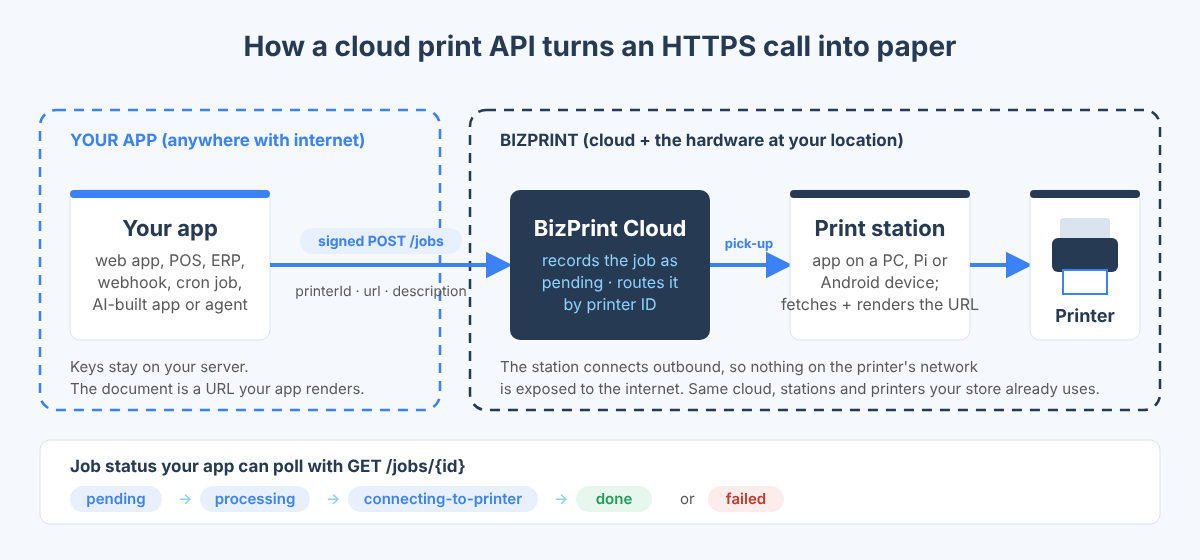
A cloud print API works in three hops: your app creates a job in the cloud, a station app at the location picks the job up, and the station sends the rendered document to the printer. Nothing on the printer’s network has to be reachable from the internet, because the station makes the outbound connection.
| Hop | Who | What happens | What you configure |
|---|---|---|---|
| 1. App → BizPrint Cloud | Your server, webhook, cron job or agent | Signed POST /jobs with printerId, url and description; BizPrint Cloud records the job as pending | API keys (public and secret) as server-side environment variables |
| 2. BizPrint Cloud → station | The BizPrint station app on a computer, Raspberry Pi or Android device at the location | The station receives the job, fetches the document at url, renders it for the printer’s driver; status becomes processing then connecting-to-printer | Install the station from getbizprint.com/download, sign in, add the printer |
| 3. Station → printer | The station over Wi-Fi, Ethernet or Bluetooth | The driver sends the rendered document; status becomes done (or failed) | A supported receipt or label printer with a verified driver for the station’s operating system |
The document itself is a URL. You render the receipt, ticket or label as a web page in your own app, at an address only BizPrint can guess, and the station fetches it. This is the detail that makes the API small: there is no document format to learn, no template language on BizPrint’s side, and whatever your app can render with HTML and CSS can be printed. The Print API page recommends an unguessable link (a long random token in the path or query string) so the receipt is not readable by anyone who stumbles on the URL.
What are the Print API endpoints?
The BizPrint Print API has seven endpoints under one base URL, and every integration uses three of them: list printers once, create jobs, check a job’s status. The base URL is https://print.bizswoop.app/api/connect-application/v1.
| Method and path | What it does | Parameters | Returns |
|---|---|---|---|
GET /printers | Lists printers on the account, paginated | perPage (max 100), page | data: array of Printer objects |
GET /printers/{id} | One printer | id (number) | data: Printer |
GET /stations | Lists stations, paginated | perPage, page | data: array of Station objects |
GET /stations/{id} | One station | id (number) | data: Station |
POST /jobs | Creates a print job | body: printerId (number, required), url (string, required), description (string, required), printOption (optional, reserved) | data: Job with status: "pending" |
GET /jobs/{id} | One job and its current status | id (number) | data: Job |
GET /jobs | Lists jobs, paginated | perPage (max 100), page | data: array of Job objects |
Three object types come back. A Printer has id, name, key, status (online or offline), a station object with its own id and name, and timestamps. A Station has id, name and timestamps. A Job has id, description, status, url, printerId, createdAt and updatedAt. Job status is one of pending, processing, connecting-to-printer, done, failed or archived.
List endpoints paginate with three response headers: X-Biz-Has-More (boolean), X-Biz-Total-All (item count) and X-Biz-Total-Pages. Errors share one shape, { "errorCode": "ERR_…", "message": "…" }, and validation errors (ERR_INVALID_REQUEST) add an errors object mapping each bad field to its messages. The codes worth handling in code are ERR_UNAUTHORIZED (bad signature or keys), ERR_JOB_CREATING_INVALID_PRINTER_ID (the printer is not on your account), ERR_JOB_CREATING_PRINT_JOB_LIMIT (“Reached print limit”: you have used the free prints and have not enabled development mode or a plan), ERR_NOT_FOUND and ERR_SOMETHING_WRONG.
There are no webhooks in the documented API; job status is read by polling GET /jobs/{id}. For a receipt that is fine, because the job finishes in seconds and most apps only care about failed. For an audit trail, GET /jobs with perPage=100 pages through the account’s history.
How does request signing work?
Every request is signed with a SHA-256 hash of the request plus your secret key, so the secret never travels over the wire. The two rules, copied from the HTTP reference:
- POST (and PATCH or PUT, should those appear): add
publicKeyandtime(current Unix time in seconds) to the JSON body. Computehash = sha256_hex(JSON.stringify(body) + ":" + SECRET_KEY)over the body that containspublicKeyandtimebut nothash. Addhashto the body and send it withContent-Type: application/json. - GET (and DELETE): add
publicKeyandtimeas query parameters. Computehash = sha256_hex(queryString + ":" + SECRET_KEY)over the full query string, without the leading?. Appendhashas one more query parameter.
Two things trip people up. The hash is computed over the exact serialized string you send, so build the body once, stringify it once, hash that string and send that same string; re-serializing with different key order produces a different hash and an ERR_UNAUTHORIZED. And time is seconds, not milliseconds; Date.now() without the division is the most common cause of a rejected request. The developer docs list two helpers in the GitHub repository for exactly this, a Node client (@bizswoop/print-client, which wraps the signing in client.Jobs.create(), client.Printers.list() and the rest) and a print-sign-request-cli for debugging a signature by hand.
Here is the GET side, listing printers so you can find the printerId the first sample needs:
// printers.js — list printers on the account (signed GET)
import { createHash } from "node:crypto";

const API = "https://print.bizswoop.app/api/connect-application/v1";
const sign = (s) => createHash("sha256").update(`${s}:${process.env.BIZPRINT_SECRET_KEY}`).digest("hex");

export async function listPrinters({ perPage = 20, page = 1 } = {}) {
  const q = new URLSearchParams({
    perPage: String(perPage),
    page: String(page),
    publicKey: process.env.BIZPRINT_PUBLIC_KEY,
    time: String(Math.floor(Date.now() / 1000)),
  });
  q.append("hash", sign(q.toString()));
  const res = await fetch(`${API}/printers?${q}`);
  const json = await res.json();
  if (!res.ok) throw new Error(`${json.errorCode}: ${json.message}`);
  return { printers: json.data, hasMore: res.headers.get("X-Biz-Has-More") === "true" };
}

const { printers } = await listPrinters();
for (const p of printers) console.log(p.id, p.name, p.status, "station:", p.station?.name);
And the same create-job call in Python, for the Django, Flask and FastAPI crowd:
# print_job.py — Python 3.9+, standard library only
import hashlib, json, os, time, urllib.request

API = "https://print.bizswoop.app/api/connect-application/v1"

def sign(s: str) -> str:
    return hashlib.sha256(f"{s}:{os.environ['BIZPRINT_SECRET_KEY']}".encode()).hexdigest()

def print_job(printer_id: int, url: str, description: str) -> dict:
    body = {
        "printerId": printer_id,
        "url": url,
        "description": description,
        "publicKey": os.environ["BIZPRINT_PUBLIC_KEY"],
        "time": int(time.time()),
    }
    serialized = json.dumps(body, separators=(",", ":"))  # compact, like JSON.stringify
    body["hash"] = sign(serialized)
    req = urllib.request.Request(
        f"{API}/jobs",
        data=json.dumps(body, separators=(",", ":")).encode(),
        headers={"Content-Type": "application/json"},
        method="POST",
    )
    with urllib.request.urlopen(req) as res:
        return json.load(res)["data"]

if __name__ == "__main__":
    job = print_job(12, "https://yourapp.example/labels/ORD-4821?t=unguessable-token", "Shipping label ORD-4821")
    print(job["id"], job["status"])
The compact separators matter in Python: JSON.stringify emits no spaces, and the hash has to be computed over the same bytes you send, so serialize once with separators=(",", ":") and send that string.
How do you add printing to your app, step by step?
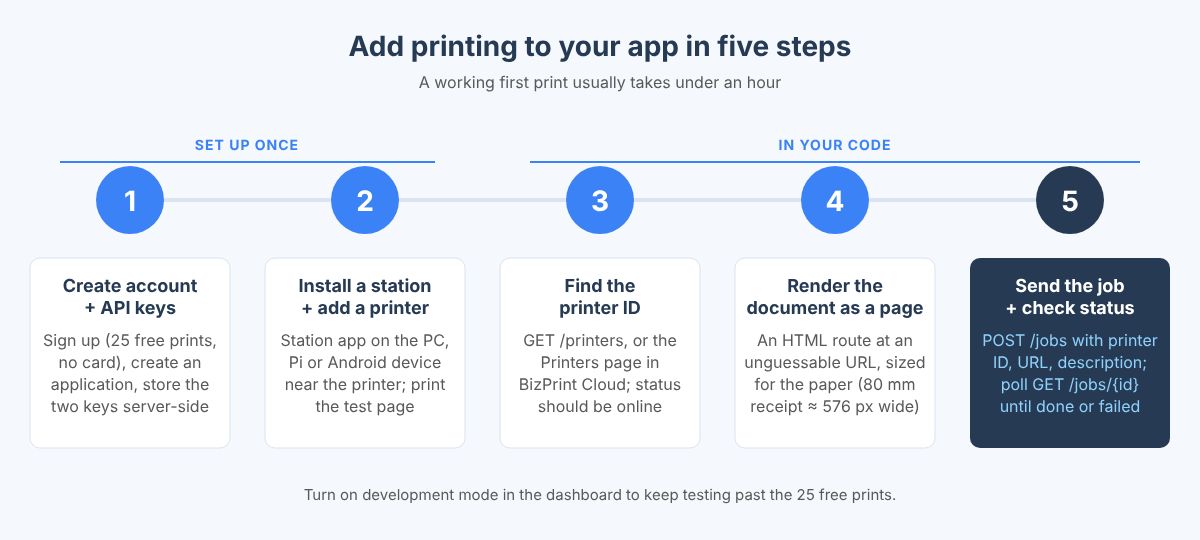
Adding printing to an app takes five steps, and a working first print usually takes under an hour.
- Create a BizPrint Cloud account and generate API keys. Sign up at login.bizswoop.app/register (25 free print jobs, no card), then create an application on the Applications page to get a public key and a secret key. Put them in
BIZPRINT_PUBLIC_KEYandBIZPRINT_SECRET_KEYon your server, never in client-side code or a repository. - Install a station and add a printer. Download the station app from getbizprint.com/download onto the computer, Raspberry Pi or Android device that sits near the printer, sign in to the same account, and add the printer. Print the station’s test page so you know the hardware side works before you write code.
- Find the printer ID. Call
GET /printers(theprinters.jssample above) or read it from the Printers page in BizPrint Cloud. The ID is a number; the printer’sstatusshould beonline. - Render your document as a page. Add a route in your app that returns the receipt, ticket or label as HTML at an unguessable URL:
/receipts/4821?t=<random token>. Size it for the paper (an 80 mm receipt is roughly 576 px wide on most thermal printers; a 4 × 6 in shipping label is a fixed page) and keep it self-contained, with fonts and images the station can fetch. - Send the job and check the status. Call
POST /jobswith the printer ID, the URL and a description, store the returned jobid, and pollGET /jobs/{id}untilstatusisdoneorfailed. Turn on development mode in the dashboard to keep testing past the 25 free prints.
If an AI coding tool is writing the app for you, hand it the steps above with the two code samples and the Print API page’s builder prompt, which spells out the base URL, the signing rule and the endpoints in the form those tools follow well. Because the API returns readable errorCode and message fields, the tool can see “Invalid printer ID” or “Reached print limit” and fix the call without you reading a log.
Ready to add printing to your app? Every BizPrint account starts with 25 free print jobs, no card required, and the Print API is included on every plan.
What can you print, and how do you format it?
You can print anything your app can render as a web page, which covers every operational document a commerce or service business produces. The job’s url points at the page; the station fetches and renders it for the printer it is bound to. The developer docs describe the input as a page, receipt, ticket or label.
| Document | Typical printer | How to build the page | Notes |
|---|---|---|---|
| Customer receipt | 58 or 80 mm thermal receipt printer (ESC/POS or StarPRNT) | One narrow HTML column, monospace or compact sans, no fixed page height | Include order number, line items, totals, payment method, a QR code to the order page |
| Kitchen or bar ticket | 80 mm thermal, often with a cutter and buzzer | Large type, one item per line, modifiers indented, station name at the top | Route by printerId: kitchen, bar, pizza oven each get their own printer |
| Packing slip | Thermal receipt or letter/A4 desktop printer | Order header, ship-to block, item table with quantities and pick locations | Print on the “packed” or “paid” event from your fulfillment app |
| Shipping label | 4 × 6 in thermal label printer | Fixed-size page matching the label stock; barcode or QR as an image or SVG | Generate the barcode in your app; the station prints what the page shows |
| Event badge, wristband or ticket | Label printer sized for the stock | One page per attendee, name large, QR for scan-in | Printed by the check-in app on scan or by a batch job the night before |
| Work order or job tag | Thermal receipt or label | Job number, customer, asset, checklist | Repair shops and service businesses print on status change |
| Pick list or prep list | Thermal receipt or desktop printer | Grouped by location or station, quantity first | Scheduled: a cron job or an agent calls POST /jobs every morning |
QR codes and barcodes are the one place to pause. Generate them in your app (any QR or barcode library that outputs an SVG or PNG works) and embed them in the page; the station renders the page exactly as a browser would, so a crisp vector QR prints crisply. Keep the whole page self-hosted or on a CDN the station can reach, because a font or image that fails to load produces a receipt with a gap in it.
If a document only exists as a PDF, confirm PDF-by-URL support with BizPrint support before building on it; the documented input is a web page, and the simplest path is always to render the document as HTML. The printOption field on POST /jobs is reserved for print settings; leave it out unless BizPrint support provides a value for your printer.
WooCommerce and Shopify stores do not need any of this: the BizPrint Print Manager for WooCommerce plugin and BizPrint for Shopify ship with receipt, packing-slip and label templates on top of the same cloud, which is the point: the API is the same infrastructure already printing real orders for those stores every day.
Which printers and stations does the Print API support?
The Print API prints on receipt and label printers connected over Wi-Fi, Ethernet or Bluetooth, through a BizPrint station running on Windows, macOS, Linux, Raspberry Pi OS or Android. USB-only connections are not supported, and the printer needs a verified driver for the station’s operating system.
| Station | Runs on | Printer command sets | Best for |
|---|---|---|---|
| Desktop station | Windows, macOS, Linux, Raspberry Pi OS | Anything the OS has a verified driver for: thermal receipt, label, laser and inkjet | A back-office PC or a Raspberry Pi tucked behind the counter; multi-printer locations |
| Android station | Android phones and tablets | ESC/POS and StarPRNT command printers | Restaurants and pop-ups where a tablet is already at the pass; no PC on site |
One station can serve several printers, and one account can have many stations, so a multi-location business runs one station per site and routes by printerId. GET /printers returns each printer with its station object, which is how an app with fifty locations picks the right printer: store the mapping from your location ID to the BizPrint printer ID once, then every job is a lookup. The status field (online or offline) lets your app warn staff before the kitchen goes quiet rather than after.
Check specific models against the hardware page before buying; the rule of thumb is that any Ethernet or Wi-Fi ESC/POS or StarPRNT receipt printer and any label printer with a desktop driver for your station’s OS is a safe choice, and Bluetooth is for Android-station setups.
What does the Print API cost?
The Print API is included on every BizPrint plan at no extra fee, you pay per successful print, and the first 25 prints are free with no card required. The Build plan exists for apps and agents that do not need the WooCommerce plugin or the Shopify app; it is API and MCP only, priced per print with a small monthly minimum. Plus and Pro add the WooCommerce plugin (from Plus) and the Shopify app (Pro, billed through Shopify) and lower the per-print rate. Development mode lifts the 25-print limit while you build and test, so a ERR_JOB_CREATING_PRINT_JOB_LIMIT during development means development mode is off, not that you owe anything. Current per-print rates and the plan table are on the pricing page; they are not repeated here because body copy goes stale and the pricing page does not.
When should you not use a cloud print API?
You should not use a cloud print API when the code that prints and the printer are permanently on the same device, or when the output has to be the mobile OS’s own print flow. Being honest about the edges saves you an integration you would rip out.
- Single-device POS with one attached printer. A tablet POS that will only ever print to the printer beside it is served fine by a native ESC/POS or StarPRNT library, and a cloud round-trip adds nothing but a dependency on the internet connection.
- AirPrint-only or user-chosen printers on mobile. If the user is supposed to pick a printer from the iOS or Android share sheet, use the platform’s print API; a cloud print API prints to printers you have configured, not to whatever is nearby.
- Documents the user must preview and adjust. Letters, proposals and reports that someone edits before printing belong in the browser dialog; the point of a cloud print API is that nobody looks before it prints.
- No internet at the location. The station needs an outbound connection to receive jobs. A site that loses connectivity for hours should keep a local fallback.
Everything else, which is to say every case where the trigger is a server event, a webhook, a schedule, an app hosted somewhere other than the printer’s network, or an agent, is where a cloud print API is the right tool.
What are the common use cases for a print API?
The common print API use cases are the documents a business has to produce the moment something happens, at a specific physical place. The BizPrint Print API page lists the ones that come up most, and they map onto app types.
- Kitchen and order tickets for restaurants, cafes, food trucks and pop-ups, printed from an ordering site, a delivery integration or a POS when an order is paid.
- Packing slips and shipping labels for storefronts and fulfillment tools, printed when an order moves to packed or shipped.
- Event check-in badges, wristbands and tickets, printed by a check-in app the moment an attendee scans in, or in a batch the night before.
- Work orders and job tags for repair shops and service businesses, printed on status change so the bench always has paper for the job in front of it.
- Pick lists and prep lists, printed on a schedule or on demand, including by an agent that decides each morning what needs restocking.
Each is one route that renders a page and one POST /jobs on an event. The events piece in this series, Print Event Badges, Wristbands and Tickets from a Check-In App, walks through the badge case end to end, and the AI-builder tutorial, Add Receipt Printing to a Lovable, Bolt or Replit App in 10 Minutes, does the same for a prototype built in Lovable, Bolt or Replit.
How does the Print API compare with PrintNode and other cloud print services?
Compared with general-purpose cloud print services, the BizPrint Print API is commerce-aware: it is the same infrastructure that already runs WooCommerce and Shopify order printing, so routing by location, receipt and label hardware, and the documents stores actually print are the defaults rather than things you build. A general cloud print service gives you a raw print pipe to a printer; that is a fine fit for an enterprise print fleet and a poor fit for “print the kitchen ticket when the order is paid.” The full, platform-neutral comparison, including where PrintNode is the better choice, is in BizPrint vs PrintNode: Which Print API for Your App on the BizSwoop hub.
Can an AI agent use the same print API?
Yes: the open-source BizPrint MCP Server exposes the same seven calls to AI agents as MCP tools, so Claude Desktop, Claude Code and other MCP clients that run local servers can list printers, create print jobs and check their status without you writing the HTTP code at all. The server runs locally on the machine where the agent runs and connects to your BizPrint Cloud account; there is no hosted version. The tools, list_printers, get_printer, list_stations, get_station, create_print_job, get_print_job and list_print_jobs, mirror the endpoints above one for one, which means anything you build against the API is already reachable by an agent, and a prompt like “Print the receipt for order #4821 to the kitchen printer” produces paper.
| Build this with | Print API | MCP Server |
|---|---|---|
| A web app, POS, ERP or fulfillment tool that prints on its own events | Yes | No; MCP is for agents, not application code |
| An AI-built app (Lovable, Bolt, Replit, Cursor) that needs a print function | Yes; a server-side function and two environment variables | No, unless the app itself hosts an agent |
| Claude or another local MCP client deciding when to print | Possible, but you would be writing tool code | Yes; install the server, add keys, prompt |
| A scheduled or webhook-driven job (cron, Zapier-style automation) | Yes | Only if an agent runs the schedule |
| Both: an app that prints, plus an operator asking an agent to reprint or print ad hoc | Yes | Yes; same account, same printers |
The install, the tool arguments and the security model are in the BizPrint MCP Server guide, and the category view, what a print MCP server is and why agents stall at the physical step, is in What Is a Print MCP Server, and Why Agents Need One on bizswoop.com. If you have already built on the API and want to hand the same workflow to an agent, From Print API to MCP: Expose Your Print Workflow to Agents covers that path.
Frequently asked questions
What is a print API?
A print API is an interface that lets a website or application send documents to a printing service programmatically, instead of a person choosing Print in a dialog. A cloud print API, such as the BizPrint Print API, accepts a document URL and a printer ID over HTTPS and prints on a physical receipt or label printer anywhere with an internet connection, reporting the job’s status back to the app.
How do I add receipt printing to my app?
Render the receipt as a web page at an unguessable URL, then send a signed POST /jobs to the BizPrint Print API with that URL, the ID of the receipt printer (from GET /printers) and a description. A BizPrint station at the location fetches the page and prints it; poll GET /jobs/{id} until the status is done. The Node and Python samples in this guide are complete, working examples of that call.
Can I print from a web app to a thermal printer?
Yes, through a cloud print API: the web app, wherever it is hosted, creates a print job, and a station on a computer or Android device next to the thermal printer prints it. Android stations drive ESC/POS and StarPRNT receipt printers directly; desktop stations on Windows, macOS, Linux and Raspberry Pi OS print to any thermal printer with a verified driver. The web app never needs network access to the printer.
What are the 6 types of APIs, and which one is a print API?
APIs are commonly grouped by access (open or public, partner, internal or private, composite) and by protocol or style (REST, SOAP, RPC, GraphQL, WebSocket), which is where lists of “six types” come from. The BizPrint Print API is a REST-style HTTPS API with JSON bodies and signed requests, open to any account holder, so it falls under public REST APIs.
How do I get an API key for the Print API?
Create a BizPrint Cloud account at login.bizswoop.app/register, then create an application on the Applications page of the dashboard; it issues a public key and a secret key. The public key identifies your app in each request, and the secret key is used only to compute the SHA-256 request hash on your server, so it is never sent. The 25 free print jobs need no card, and development mode lets you keep testing past them.
Is there an OpenAPI spec for the BizPrint Print API?
Not yet. The API is documented in the HTTP reference, on the developer docs page and in the GitHub repository, which also holds a Node client library and a signing CLI. With seven endpoints and three object types, the reference is short enough to paste into an AI coding tool whole, which is how most AI-built integrations are done today.
Does the Print API support webhooks for job status?
No, the documented API has no webhooks; job status is read by polling GET /jobs/{id}, which moves through pending, processing and connecting-to-printer to done or failed within seconds for a normal receipt. For history and reconciliation, GET /jobs lists jobs with up to 100 per page and X-Biz-Has-More, X-Biz-Total-All and X-Biz-Total-Pages headers.
What is the difference between a print API and a printing API for POS?
A POS printing API, such as the Shopify POS UI extension print call or a native ESC/POS library, prints from the POS device to a printer it can reach directly, usually through a dialog or a local connection. A cloud print API prints from any server, app or agent to any configured printer through a station, with no dialog and no shared network, which is what you need when the trigger is an online order, a fulfillment event or an agent rather than a cashier.
What is an API document, and where is the BizPrint one?
An API document (or API reference) is the written specification of an API’s endpoints, parameters, responses and errors that developers code against. The BizPrint Print API reference lives at bizswoop-development.github.io/bizprint-api, with the HTTP version covering raw requests and signing and the Node version covering the PrintClient library; the developer docs page on getbizprint.com summarizes both and adds the MCP server.
Make your app print today
Create a free BizPrint Cloud account, install a station beside your printer, and the Node sample at the top of this page prints your first receipt in minutes: 25 free print jobs, no card required, and the API is included on every plan.
