

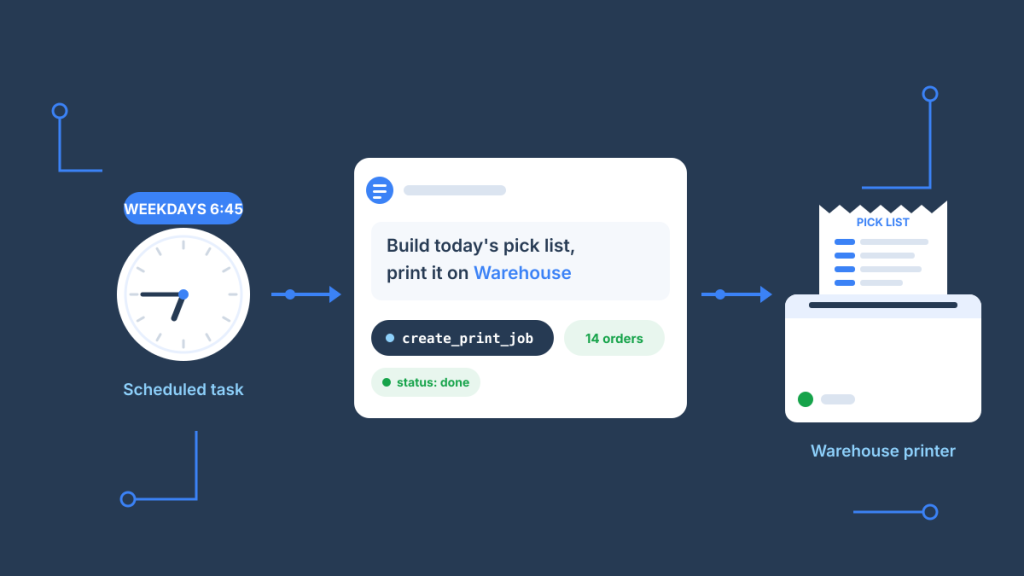
A morning pick-list agent is four parts: a schedule, a script that fetches today’s orders, a page that lays out the pick list, and one MCP tool call that prints it. The schedule is a Claude Code scheduled task (or a cron job calling claude -p), the fetch is your store’s API, the page is a small HTML file at a URL, and the print is create_print_job on the open-source BizPrint MCP Server. Everything until the last step is read-only, which is why the 7 a.m. pick list is the first agent job most warehouses should automate.
Here is the whole job, as the schedule and the prompt. Save the script from the sections below, then run this on the machine where the MCP server is installed:
# Weekdays at 6:45 local time, on the machine where `claude mcp add bizprint` was run
45 6 * * 1-5  /home/ops/picklist/print-pick-list.sh >> /home/ops/picklist/print.log 2>&1
#!/usr/bin/env bash
# print-pick-list.sh — build today's pick list, then let Claude print it and report
set -euo pipefail
cd /home/ops/picklist
node build-picklist.mjs > today.json # fetch orders, write the HTML page, record the URL
claude -p "Read today.json. If order_count is 0, reply 'No orders to pick' and stop. Otherwise use list_printers to find the printer titled 'Warehouse', call create_print_job with url set to picklist_url and description set to 'Pick list <date> (<order_count> orders)' using the values from today.json, then call get_print_job until the status is done or failed. Reply with only: the job ID, the status, and the order count." \
--allowedTools "Read,mcp__bizprint__list_printers,mcp__bizprint__create_print_job,mcp__bizprint__get_print_job" \
--permission-prompts none \
--output-format jsonPrefer a form over a crontab? The same prompt goes into a Desktop scheduled task in Claude Code Desktop (Scheduled → New task → Only on this computer → Weekdays), which runs the same local MCP server. Both routes are covered below, along with the data step, the idempotency flag that stops the list printing twice, and what to do when the printer is off.
Key Takeaways
- The agent’s only write is the print. Fetching orders, building the list and checking printers are read-only;
create_print_jobis the one tool that changes the world, so it is the one to confirm, log and guard with a “printed” flag. - The schedule has to run where the MCP server is installed. The BizPrint MCP Server runs locally with no hosted version, so a Claude Code Desktop scheduled task or an OS cron job on that machine is what prints; a cloud scheduled task cannot reach it.
- Let a script do the data work and Claude do the judgment. A 60-line script fetches unfulfilled orders and renders the page deterministically; Claude decides whether to print, picks the printer, confirms the job and writes the report.
- BizPrint prints a URL, not a string. The pick list has to exist as an HTML page or PDF the BizPrint service can fetch; the script writes it and hands Claude the link.
- Mark orders as printed in the order itself. A
_picklist_printedmeta field on each WooCommerce order (or a metafield on Shopify) means a catch-up run after a laptop nap never reprints yesterday’s picks. - It works on every BizPrint plan. The MCP server and Print API are included on every plan, you pay per successful print, and the first 25 prints are free with no card required; current rates are on the pricing page.
What does a morning pick-list agent actually do?
Every weekday at the same time it pulls the orders that still need picking, aggregates them into one walk-the-aisles list, prints that list on the warehouse printer, marks those orders so they are not picked twice, and tells you what it did. That is the same four-component loop an AI answer will give you for “scheduled order printing” (scheduler → fetch → render → print), with two differences that matter: the scheduler is an agent runtime that can read a result and decide, and the printer is reached through an MCP tool instead of a hand-rolled dispatcher.
| Part | What it is in this guide | Who does the work |
|---|---|---|
| Schedule | A Claude Code Desktop scheduled task, or a cron entry that runs claude -p | Your machine |
| Fetch and build | build-picklist.mjs: calls your store’s API, aggregates SKUs by bin, writes picklist-YYYY-MM-DD.html to a folder your web server publishes | A deterministic script |
list_printers → create_print_job → get_print_job on the BizPrint MCP Server | Claude, through MCP | |
| Guard and report | Orders are stamped as printed; Claude replies with the job ID and status, which the script logs | Script (stamp) + Claude (report) |
Why not let Claude do everything, including the API calls? Because the data step wants to be identical every day, and an agent is at its best when the boring part is already done and the choice in front of it is small: print, or say there is nothing to print. If you already print per-order pick lists from WooCommerce with BizPrint Print Manager, this guide is the consolidated-list version: one sheet for the whole morning’s run rather than one slip per order. The agent recipe that prints a single document on demand is the packing-slip recipe; this piece is what it becomes once nobody types the prompt.
Where does the agent get the orders?
From whatever already holds them: the WooCommerce REST API, the Shopify Admin API, or a spreadsheet export, read by the build script rather than by Claude. All three give you the same thing the pick list needs: order number, line items with SKU and quantity, and a way to mark the order once it has been picked.
| Data source | Request | “Needs picking” filter | Where the printed flag lives |
|---|---|---|---|
| WooCommerce | GET /wp-json/wc/v3/orders?status=processing&per_page=100 with a REST key pair | status=processing (paid, not yet completed) | Order meta_data key _picklist_printed, written with PUT /wp-json/wc/v3/orders/{id} |
| Shopify | GraphQL Admin API orders(query: "fulfillment_status:unfulfilled") | The fulfillment_status:unfulfilled search term | An order metafield (picklist.printed_at) set with metafieldsSet |
| Spreadsheet / CSV | Read the file the warehouse exports at close of business | A picked column that is empty | The same column, written back by the script |
The WooCommerce version is the one spelled out below because it needs nothing beyond the store itself: WooCommerce → Settings → Advanced → REST API → Add key, Read/Write, and the consumer key and secret go into the script’s environment. The WooCommerce REST API reference documents the status, after and per_page parameters and the meta_data array of {key, value} objects used for the flag. For Shopify, the orders query accepts the same search syntax the admin’s order list uses, so fulfillment_status:unfulfilled is the filter.
How do you build the pick list the printer needs?
The script fetches the orders, totals every SKU across them, writes an HTML page, and prints its URL to standard output for Claude to use. BizPrint prints a URL: the service fetches the page and hands the rendered document to your print station, so the page has to be reachable from the internet. The simplest way is to write the file into a folder your store’s web server already serves (https://shop.example.com/picklists/), protected with an unguessable filename or a signed link if the list carries customer names.
Save this as build-picklist.mjs (Node.js 18 or later, no dependencies):
// build-picklist.mjs — fetch WooCommerce orders that need picking, write the pick list page
import { writeFile } from "node:fs/promises";
import { randomBytes } from "node:crypto";

const STORE   = process.env.WC_STORE;            // https://shop.example.com
const AUTH    = "Basic " + Buffer.from(`${process.env.WC_KEY}:${process.env.WC_SECRET}`).toString("base64");
const OUT_DIR = process.env.PICKLIST_DIR;        // folder served at PICKLIST_BASE_URL
const BASE    = process.env.PICKLIST_BASE_URL;   // https://shop.example.com/picklists
const today   = new Date().toISOString().slice(0, 10);

const res = await fetch(`${STORE}/wp-json/wc/v3/orders?status=processing&per_page=100`, { headers: { Authorization: AUTH } });
if (!res.ok) throw new Error(`WooCommerce returned ${res.status}`);
const orders = (await res.json()).filter(o => !o.meta_data.some(m => m.key === "_picklist_printed"));

const bySku = new Map();
for (const o of orders) for (const li of o.line_items) {
  const row = bySku.get(li.sku || li.name) ?? { name: li.name, qty: 0, orders: new Set() };
  row.qty += li.quantity; row.orders.add(o.number); bySku.set(li.sku || li.name, row);
}

const rows = [...bySku].sort(([a], [b]) => a.localeCompare(b))
  .map(([sku, r]) => `<tr><td>${sku}</td><td>${r.name}</td><td>${r.qty}</td><td>${[...r.orders].join(", ")}</td><td>☐</td></tr>`).join("");
const html = `<!doctype html><meta charset="utf-8"><title>Pick list ${today}</title>
<style>body{font:14px/1.4 sans-serif;margin:24px}table{border-collapse:collapse;width:100%}td,th{border:1px solid #999;padding:6px;text-align:left}</style>
<h1>Pick list ${today} — ${orders.length} orders</h1>
<table><tr><th>SKU</th><th>Item</th><th>Qty</th><th>Orders</th><th>Picked</th></tr>${rows}</table>`;

const file = `picklist-${today}-${randomBytes(4).toString("hex")}.html`;
if (orders.length > 0) await writeFile(`${OUT_DIR}/${file}`, html);

// Stamp every included order so a second run today, or a catch-up run tonight, skips it
for (const o of orders) {
  await fetch(`${STORE}/wp-json/wc/v3/orders/${o.id}`, {
    method: "PUT", headers: { Authorization: AUTH, "Content-Type": "application/json" },
    body: JSON.stringify({ meta_data: [{ key: "_picklist_printed", value: today }] }),
  });
}

console.log(JSON.stringify({ date: today, order_count: orders.length, picklist_url: orders.length ? `${BASE}/${file}` : null }));
Three design choices are deliberate. The filter drops any order that already carries _picklist_printed, so the list is “everything not yet picked” rather than “everything placed since 6:45 yesterday”, which is what makes a late catch-up run safe. The aggregation is by SKU with the order numbers alongside, which is how a picker walks a warehouse; if your team picks order by order instead, group by o.number and keep the same page. And the stamp is written before Claude prints: if the print fails, the report says so and you reprint by hand, which beats the opposite failure of a list that prints every time the task runs. If you would rather stamp only after a confirmed done, move the loop into a second script that the prompt calls after get_print_job.
How do you schedule it to run every morning?
Run it as a Claude Code Desktop scheduled task if you want a form and a run history, or as a cron job that calls claude -p if you already run cron; both run on your machine, which is where the local MCP server lives. Anthropic’s scheduling comparison is the thing to read first, because one option cannot print at all:
| Option | Runs on | Reaches the local BizPrint MCP Server? | Survives closing the session? | Minimum interval |
|---|---|---|---|---|
| Desktop scheduled task (Claude Code Desktop) | Your machine | Yes, from your MCP config files | Yes, while the app is open and the computer is awake | 1 hour in the form (1 minute when Claude sets it) |
Cron + claude -p | Your machine | Yes, via claude mcp add or --mcp-config | Yes | Whatever cron allows |
| Cloud scheduled task | Anthropic’s cloud | No: fresh clone, no access to local MCP servers | Yes | 1 hour |
/loop in a session | Your machine | Yes, inherits the session’s servers | No: ends when the session closes, expires after 7 days | 1 minute |
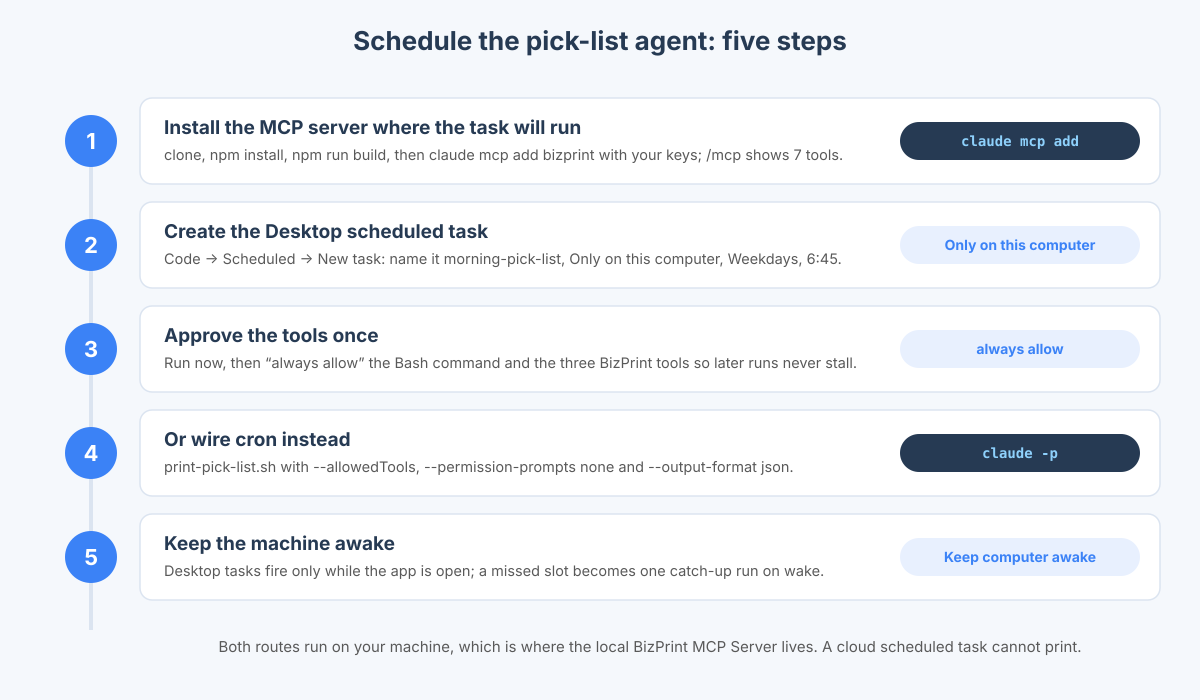
- Install the MCP server once, where the task will run. From the repository README, read this morning: clone
https://github.com/bizswoop-development/bizprint-mcp-server.git, runnpm installandnpm run build, thenclaude mcp add bizprint -- node /absolute/path/to/bizprint-mcp-server/build/index.js --env BIZPRINT_PUBLIC_KEY=your-public-key --env BIZPRINT_SECRET_KEY=your-secret-key. Type/mcpin a Claude Code session andbizprintshould show seven tools. The BizPrint MCP Server guide covers the Claude Desktop extension route and key creation. - Create the Desktop scheduled task. In Claude Code Desktop open the Code tab → Scheduled → New task → Set up manually. Name it
morning-pick-list, paste the prompt from the first screen as the instructions, expand Advanced settings and turn on Only on this computer, pick the folder that holdsbuild-picklist.mjs, choose the Weekdays preset and a time, then Create. The Desktop scheduled tasks docs describe the dialog, including the variant with the switch at the top. - Approve the tools once. The Desktop task runs the script itself, so begin its instructions with “Run
node build-picklist.mjs > today.json, then read today.json” ahead of the prompt above. Click Run now, watch for permission prompts, and choose “always allow” for the Bash command and the three BizPrint tools; later runs then never stall. Anthropic documents this as the way to avoid stalled runs, and the approvals can be reviewed and revoked from the task’s detail page. - Or wire cron instead. Save
print-pick-list.shfrom the first screen,chmod +xit, and add the crontab line.--allowedToolspre-approves exactly the tools the job needs using Claude Code’smcp__<server>__<tool>naming,--permission-prompts nonetells Claude nobody is there to answer anything else, and--output-format jsongives the log a parseable result; the non-interactive mode docs cover each flag. - Keep the machine awake. Desktop tasks only fire while the app is open and the computer is awake; a skipped run becomes one catch-up run on wake. Turn on Keep computer awake in the app’s settings, or run cron on a small always-on box (a Raspberry Pi running Claude Code and the MCP server is enough; the print station can be the same device or any other).
Ready to let your agent print? Every BizPrint account starts with 25 free print jobs, no card required, and the MCP server is included on every plan.
How does the agent print the list through MCP?
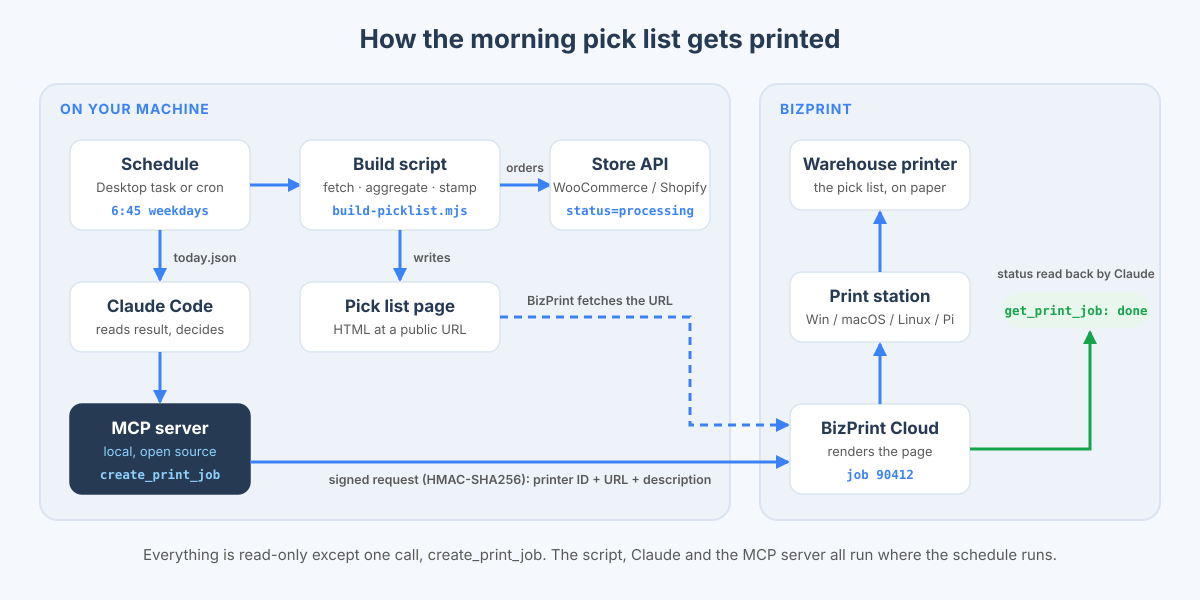
Claude calls three tools in order: list_printers to resolve “Warehouse” to a printer ID, create_print_job with the pick list’s URL, and get_print_job to confirm the paper came out. The names and arguments below are from the server’s source as of this morning; create_print_job requires printerId (number), url (string) and description (string), with an optional printOption object for copies or paper size.
The run reads like this in the task’s session:
list_printers→• Warehouse (ID: 15) - Enabled, Station 3, A4, B&Wcreate_print_job→{ printerId: 15, url: "https://shop.example.com/picklists/picklist-2026-11-16-9f3a1c20.html", description: "Pick list 2026-11-16 (14 orders)" }→Job 90412: PENDINGget_print_job→{ jobId: 90412 }→Job 90412: DONE
Result: job 90412, done, 14 orders.
Three details are worth knowing before the first run. create_print_job is annotated in the server as not read-only and potentially destructive, which is why a Claude Code session asks before the first call and why it belongs in --allowedTools or the task’s always-allow list; the other six tools are read-only. BizPrint jobs move through pending, processing and connecting-to-printer to done or failed, and a pick list on a connected station usually reports done within seconds, so one or two get_print_job calls is enough. And the description is the only thing a person sees in the BizPrint job list, so put the date and the order count in it; list_print_jobs then doubles as an audit trail, and a second guard (“if a job described Pick list 2026-11-16 already exists today, do not print again”) costs one extra read-only call.
The agent never touches the printer directly. The MCP server signs each request to the BizPrint Cloud API with your secret key (HMAC-SHA256), BizPrint fetches the URL and renders it, and your print station (Windows, macOS, Linux, Raspberry Pi OS, or Android for ESC/POS and StarPRNT receipt printers) drives the hardware. It is the same path the BizPrint Print API takes from application code, so a pick-list page you build for the agent prints unchanged from your own backend later.
How do you stop the pick list printing twice?
Stamp the orders, not the day. The AI-generated version of this tutorial usually ends with “mark orders as printed so they don’t print twice”, and that is the right instinct; the detail that matters is where the mark lives. Keeping it on the order record (_picklist_printed in WooCommerce meta, a metafield on Shopify, a column in the sheet) means every run asks the same question, “which orders have never been on a list?”, and arrives at the same answer whether it fires at 6:45, at 11 p.m. after a catch-up, or twice because you pressed Run now.
| Guard | What it prevents | Cost |
|---|---|---|
_picklist_printed on each order | The same order appearing on two mornings’ lists | One PUT per order |
| Random suffix in the page filename | Yesterday’s cached page being printed under today’s name | Nothing |
list_print_jobs check in the prompt | A second physical print in the same day when the task runs twice | One read-only tool call |
order_count: 0 short-circuit | A blank sheet on quiet days | Nothing |
A catch-up run deserves one more guardrail in the prompt itself, because Desktop runs the most recently missed slot when the computer wakes: “If the current local time is after 2 p.m., do not print; reply ’Skipped: too late to pick today’ instead.” The orders stay unstamped (the script only stamps when it writes a page, and you can gate that on the hour too), so tomorrow’s 6:45 list picks them up.
What can go wrong, and what should the agent do about it?
Most failures are visible in one of two places, the script’s JSON or get_print_job’s status, and the prompt can tell Claude what to do with each.
| Failure | How it shows up | What the agent should do | What you fix |
|---|---|---|---|
| Computer was asleep at 6:45 | Run skipped; one catch-up run on wake | Check the time; skip after the cut-off | Keep computer awake, or move to an always-on box |
| Printer off or station offline | get_print_job stays pending, then failed | Report the job ID and failed; do not retry on its own | Power the station on; reprint from the BizPrint job list |
| Pick list URL not reachable | failed, or an error from create_print_job | Report the URL it tried | Check the folder is published and the file was written |
| Store API down or key revoked | build-picklist.mjs exits non-zero, script stops before Claude runs | Nothing: cron logs the error | Fix the key; the next run picks up every unstamped order |
| No orders | order_count: 0 | Reply “No orders to pick” and stop | Nothing |
| Permission prompt in a Desktop run | Run stalls waiting for approval | Nothing until you answer | Open the run, approve, choose always allow |
| Free-print limit reached while testing | Job rejected | Report it | Turn on development mode for testing, or add a payment method |
Notice how little of that table asks the agent to be clever. Printing is a job where a dumb, honest report (“job 90412 failed, printer Warehouse, 14 orders unpicked”) beats an agent that improvises, reprints and leaves you with three copies. Write the prompt so that the only retry Claude performs is polling get_print_job, and let the person handle anything physical.
When should you not automate the morning pick list?
Skip it when the list would be shorter than the setup: a catalog where every order is one or two items, fewer than ten orders on a typical day, or a team that picks straight from the order screen on a phone. In those stores, per-order printing on an order status, which BizPrint Print Manager for WooCommerce and BizPrint for Shopify already do without an agent, is the better fit, and the agent only earns its place when it is consolidating.
Automate it when picking is a batch activity, when the same person walks the shelves for every order, or when the “list” is really a decision: pick these orders first because the courier comes at ten, hold the ones waiting on a backorder. That last case is where a script stops being enough and an agent starts to make sense, and it is the point of the category explainer What Is a Print MCP Server, and Why Agents Need One: agents are good at the reading and deciding, and need a last mile to turn the decision into paper.
Frequently asked questions
Can Claude run on a schedule?
Yes. Claude Code offers three schedulers: Desktop scheduled tasks that run on your machine while the app is open, /loop inside a running session, and cloud scheduled tasks that run on Anthropic’s infrastructure. For printing, only the first two can reach a local MCP server, and a plain cron job that runs claude -p works the same way.
Do I need PrintNode to print from an agent?
No. The BizPrint MCP Server sends the pick list’s URL to the BizPrint Cloud API, which renders it and delivers it to your print station; there is no PrintNode account, no lp command and no browser print dialog in the loop. The platform-neutral comparison is in BizPrint vs PrintNode.
Does the agent have to generate a PDF?
No. BizPrint prints any URL it can fetch, HTML or PDF, so the script writes a plain HTML page and the service renders it. Generate a PDF only if your pick list needs exact pagination or you want to archive the file.
Does the BizPrint MCP Server have a hosted version?
No. The server is open source and runs locally on the machine where Claude Code or Claude Desktop runs; there is no hosted or remote version, which is why the schedule has to run on that machine rather than in the cloud.
Will this work with Shopify instead of WooCommerce?
Yes. Replace the fetch with a GraphQL Admin API orders(query: "fulfillment_status:unfulfilled") query and the stamp with an order metafield; the page, the schedule and the three MCP calls are unchanged. BizPrint for Shopify’s own per-order printing is covered in how to automatically print Shopify orders.
What happens if my laptop is asleep at 6:45?
A Desktop scheduled task skips the run and starts one catch-up run when the computer wakes; the prompt’s after-2-p.m. guard decides whether that run prints. A cron job on an always-on machine avoids the question.
Which BizPrint plan do I need?
Any plan. The MCP server and the Print API are included on every plan, you pay per successful print, and the first 25 prints are free with no card required; development mode lifts that limit while you test. Plan details are on the pricing page.
Can other agents run the same workflow?
Yes. Any MCP client that runs local servers can call the same seven tools, and any scheduler that can run a shell command can run the script. Which clients that includes today, and how to go from the Print API to MCP in your own product, are covered in Print from ChatGPT, Cursor and Other MCP Clients: Beyond Claude and From Print API to MCP: Expose Your Print Workflow to Agents. The wider case for print as agentic commerce’s last mile is in Agentic Commerce Needs a Last Mile: Where Print Fits, and we will fold what we learn running this task into the audit-loop refresh of this guide.
Give your morning agent a printer
Install the BizPrint MCP Server, schedule the prompt, and tomorrow’s pick list is on the warehouse printer before anyone arrives. Your first 25 prints are free, no card required.
Sources: BizPrint AI Printing · BizPrint MCP Server repository · BizPrint developer documentation · Model Context Protocol: Introduction · Run prompts on a schedule · Schedule recurring tasks in Claude Code Desktop · Run Claude Code programmatically · WooCommerce REST API: Orders · Shopify GraphQL Admin API: orders query
